How to Use Dictation on Mac (Complete 2026 Guide)
You've got a long email to write, your wrists ache, and somewhere in the back of your head is the memory that your Mac can type what you say. So you go looking for the setting. Ten minutes later you're in a System Settings panel you've never opened, wondering whether the mic key does Siri or dictation, and whether you have to say "period" like it's 2011.
Here's the good news: learning how to use Dictation on Mac takes about ninety seconds of setup and maybe ten minutes of practice. Here's the honest news: it's a transcription tool, not a writing tool, and the difference matters more than any tutorial usually admits. This guide covers the whole thing — enabling it, the shortcut and how to change it, languages, on-device versus server processing, the punctuation commands worth memorizing, why Voice Control keeps getting confused with dictation, and the specific ways dictation on Mac will let you down.
Turning it on takes ninety seconds
Apple moved Dictation out of its old Accessibility corner years ago. It now lives in Keyboard settings, which is the first place most people don't look.
- Open the Apple menu and choose System Settings.
- Click Keyboard in the sidebar. You'll probably need to scroll — it sits well down the list.
- Find the Dictation section and flip the switch on.
- Click Enable in the confirmation sheet. If macOS asks whether you want to help improve Siri and Dictation, you can safely click Not Now — dictation works exactly the same either way. (More on that in the privacy section.)
- Set Microphone source. Leave it on Automatic and your Mac listens to whichever mic you're most likely using; pick a specific one if you always dictate through the same headset.
- Click Edit next to Languages and select the language and region you'll dictate in. Add more than one if you switch.
- Decide about Auto-punctuation. It's on by default and, in supported languages, inserts commas, periods and question marks for you.
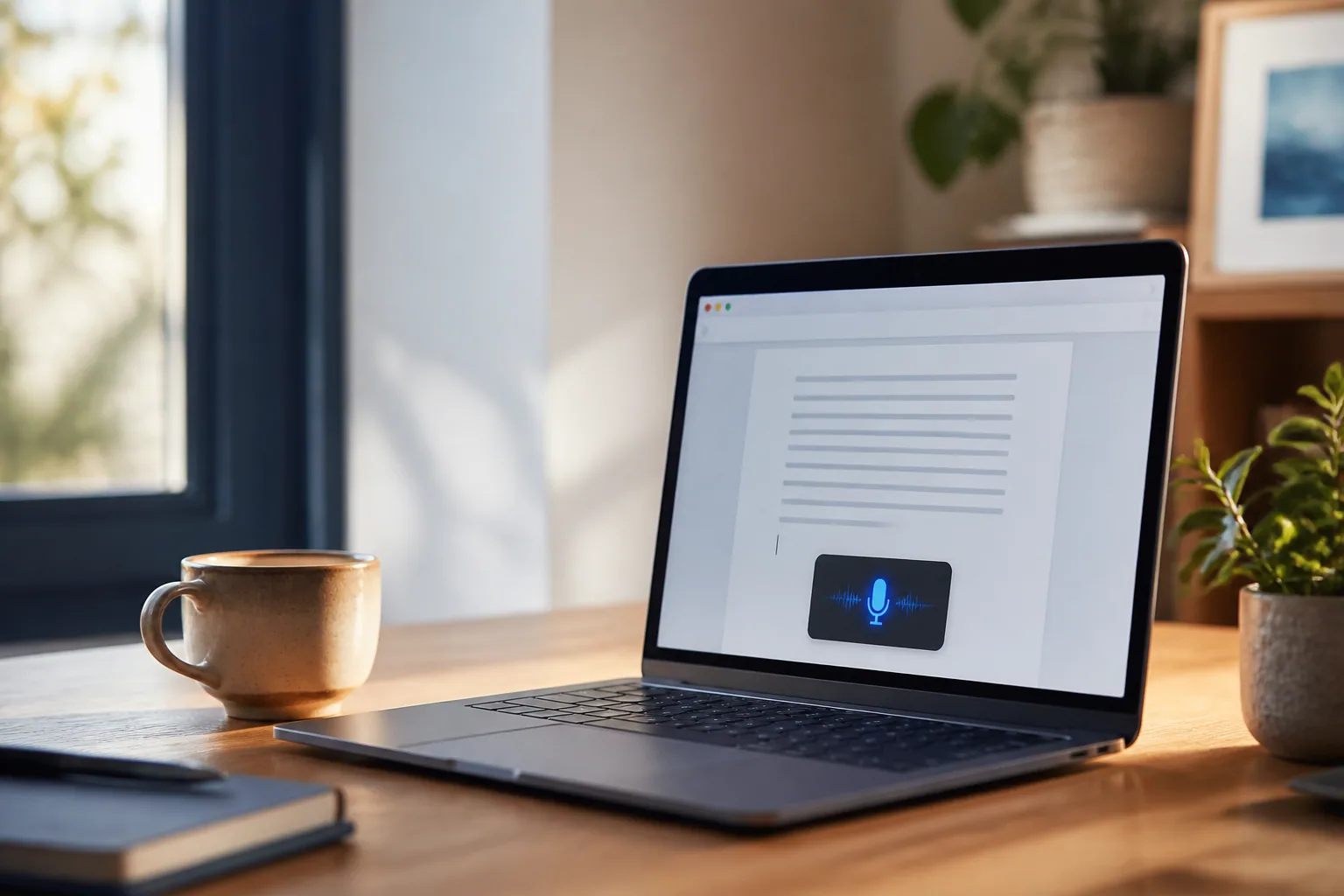
That's setup. To actually dictate: click into any text field — Mail, Notes, Slack, a browser form, anywhere you can type — press your dictation shortcut, wait for the cursor to start pulsing (or for the little tone), and talk. Press Escape or the shortcut again when you're finished.
One detail people miss: on Apple silicon Macs you can keep typing while dictation is live. The cursor stops pulsing while your fingers are on the keys and picks back up when you stop. That means you can speak a sentence, type a URL, and speak the next sentence without ever ending the session.
The shortcut is basically the whole feature
Dictation lives or dies on how fast you can start it. If it takes three clicks, you'll never use it.
If your keyboard has a Microphone key in the function row, that's your fastest path — but the behavior is oddly specific: press and release starts Dictation, while press and hold summons Siri. A lot of people who think "the mic key doesn't work" are holding it a beat too long and getting Siri instead.
No mic key? Go back to System Settings → Keyboard → Dictation and open the Shortcut pop-up menu. You'll get options like pressing the Control key twice or the Fn/Globe key twice. Pick Customize and you can assign anything you want — Option-Z, for instance. Apple's own docs use that example.
Two gotchas with double-tap shortcuts. First, if you choose "Press Fn (Function) Key Twice," the separate "Press Fn key to" setting in Keyboard settings will quietly change to match, which can break a habit you'd built around the Globe key. Second, double-tap shortcuts misfire when you're a fast typist — Control-Control is a common accidental trigger. If you dictate a lot, a dedicated combination beats a double-tap.
And if you forget all of it, Edit → Start Dictation in the menu bar always works.
Tip: fix your microphone before you blame the software.
Most "Mac dictation is inaccurate" complaints are really room complaints. The built-in mic on a MacBook sits inches from a fan and picks up the whole room. Speaking into any decent headset mic — even $30 wired earbuds — typically cuts error rates more than any setting you can change. Speak at a normal conversational pace, not slowly and not loudly. Over-enunciating actually makes speech models worse, because they're trained on natural speech, not diction exercises.
On-device or on Apple's servers — and why you should care
This is the part almost every "how to use dictation on Mac" article skips, and it's the part that decides whether you can dictate on a plane.
On Apple silicon Macs, general text dictation — composing a message, writing notes, drafting a doc — is processed on the device itself. Your audio doesn't go to Apple's servers, and it keeps working with no internet connection at all. The carve-out Apple names explicitly is dictating into a search box, which still involves the server side.
You don't have to take that on faith. Open System Settings → Keyboard and read the small print directly beneath the Dictation section (it only appears once Dictation is enabled). Apple states plainly there whether your voice inputs and transcripts for general text dictation are processed on your device. If you're on an older Intel Mac, expect more of your audio to travel.
Separate from that is the Improve Siri & Dictation setting, which is the one worth an actual decision. Turn it on and Apple may store a sample of your audio recordings and have humans review some of them. Those recordings are tied to a random, rotating device identifier rather than your Apple Account, they're kept for under six months, and you can delete your Siri and Dictation history whenever you want. You'll find the toggle in System Settings → Privacy & Security → Analytics & Improvements. If you dictate anything sensitive — client details, contract language, medical information, HR notes — turn it off. It costs you nothing.
Speaking punctuation without sounding like a robot
Auto-punctuation handles the boring 80%: commas, periods, question marks. Leave it on. What you speak out loud is everything it can't guess — structure, quotes, brackets, symbols, capitalization.
The two commands that pay for themselves immediately are "new line" (one Return) and "new paragraph" (two Returns). Without them, a dictated email arrives as one unbroken wall of text, which is the single most common reason people try dictation once and quit.
The third worth learning on day one is spelling a proper noun: say the word, then spell it — "Siobhan, S-I-O-B-H-A-N". Names are where dictation embarrasses you, and this fixes it in one pass rather than three corrections.
The command vocabulary is shared across macOS, iOS and iPadOS, so it's the same list wherever you dictate. Rather than repeat it here, we keep the full reference — punctuation, brackets, capitalization, emoji and voice editing — in our Apple Dictation guide.
What's specific to the Mac is that you can keep typing mid-dictation. On Apple silicon the session stays open while your hands are on the keys, so the practical technique is to speak the prose and type the things you'd rather not spell out loud — URLs, code, odd product names. That hybrid mode doesn't exist in the same way on iPhone, and it's the reason dictation on a Mac scales to longer documents than it does on a phone.
Voice Control is a different feature
If you've been told your Mac can be operated entirely by voice, that's Voice Control, not Dictation — a separate accessibility feature that clicks buttons, scrolls, and navigates the interface. Dictation only types.
The two are frequently confused, because both live near the microphone and both respond to speech — but on a Mac you can only have one. Switching Voice Control on makes standard macOS Dictation unavailable. The short version: Dictation is for producing text, Voice Control is for operating the machine. If you want the fuller comparison, including how Siri fits in, see our guide to Apple Dictation.
Where dictation on Mac actually breaks down
Apple Dictation has limits that apply on every Apple device — it transcribes your filler verbatim, it has no custom dictionary for names and jargon, and accuracy drops on strong accents. Those are covered in the Apple Dictation guide. What follows is the set that bites specifically on a Mac, because a Mac is where people attempt the long, serious documents.
Voice Control and Dictation can't both be on. This is the Mac-only trap, and it catches people who use both. Turn Voice Control on and standard macOS Dictation becomes unavailable — you have to choose. On iPhone the two coexist happily, so a habit built on the phone breaks the moment you carry it to the desktop.
Thirty seconds of silence ends the session. There is no cap on length — Apple states you can dictate text of any length with no timeout — but the session closes after 30 seconds with no speech. On a phone you're usually firing off two sentences and that never comes up. On a Mac you're drafting something that requires thinking between paragraphs, and it quits on you mid-thought, repeatedly. (The widely repeated "30-second limit" is a garbled version of this, mixed with the sub-minute cap that older macOS releases really did have.)
The built-in mic is the worst one in the room. A MacBook microphone sits inches from the fan intake and points at the ceiling. It is the single biggest accuracy variable on a Mac and the one nobody changes, because on a phone the mic is already near your mouth and the problem never presents itself.
Code, terminals and file paths are miserable. Dictating prose on a Mac works; dictating anything with symbols does not. ~/Library/Application Support is four commands and a prayer. The practical technique on Apple silicon is the hybrid one — speak the prose, type the symbols, never end the session — but it means dictation is an assistant to typing on a Mac rather than a replacement for it.
There are no speaker labels. Dictation is one person talking into their own cursor. Point it at a meeting or an interview playing through your Mac and you get one undifferentiated block with no idea who said what. That's a different problem needing a different tool.
The seam here is between transcription and writing, and it is wider on a desktop because the documents are longer. If you want speech to arrive as finished text — filler stripped, false starts cleaned, your specific vocabulary spelled right — you need something that edits as it listens. Laxis Voice Keyboard is built for that gap, and it runs on Windows, macOS, iOS, Android and Chrome, which matters if you dictate on more than one machine — most of the well-known Mac dictation apps are Mac-only.
Tip: dictate in beats, not paragraphs.
The single biggest accuracy gain has nothing to do with software. Think a full clause through before you open your mouth, say it in one continuous breath, then pause. Speech recognition uses surrounding words as context, so a complete phrase is transcribed far more accurately than the same words emitted one hesitant chunk at a time. It also stops you from filling silence with "um" — because you're not talking while you think. Works with any dictation tool on any platform.
The bottom line
The most useful thing dictation does isn't saving keystrokes — it's lowering the cost of a first draft. Typing makes you edit as you go, one sentence at a time, which is a great way to stare at a blank email for twenty minutes. Talking makes you commit. The words come out wrong and rambling and you fix them afterward, which is how writing was always supposed to work. Apple's Dictation is free, on your machine right now, and perfectly good for a two-sentence Slack reply or a search query. Whether you keep it for the long stuff depends entirely on how much of your day you're willing to spend deleting the word "basically."
If the answer turns out to be "not much," that's the point at which a third-party tool starts earning its subscription — the paid apps do the cleanup pass Apple's deliberately doesn't. We compared five of them on speed, languages, free tiers and price in our guide to the best dictation software in 2026.
Frequently asked questions
How do I turn on Dictation on a Mac?
Open the Apple menu, choose System Settings, click Keyboard in the sidebar, scroll to Dictation and switch it on, then click Enable when macOS asks you to confirm. In that same panel you can pick the microphone source, choose your dictation languages, set the keyboard shortcut, and toggle Auto-punctuation. Once it's on, put your cursor in any text field, press the shortcut, and start talking.
What is the keyboard shortcut for Dictation on Mac, and can I change it?
If your Mac has a Microphone key in the function row, press and release it to start Dictation (press and hold instead triggers Siri). Otherwise use the shortcut set in System Settings → Keyboard → Dictation → Shortcut. The pop-up menu offers options such as pressing the Control key twice or the Fn/Globe key twice, and choosing Customize lets you assign any combination you like, such as Option-Z. You can also start it from the menu bar with Edit → Start Dictation.
Does Mac Dictation work offline, and is it private?
On Apple silicon Macs, general text dictation is processed on the device, so it works without an internet connection and the audio isn't sent to Apple's servers. Dictating into a search box is an exception. To check your own machine, go to System Settings → Keyboard and read the text below the Dictation section. Separately, the Improve Siri & Dictation setting in Privacy & Security → Analytics & Improvements controls whether Apple can store a sample of your audio for review; audio interactions are tied to a random identifier and you can delete them.
Can I type while dictating on a Mac?
On Apple silicon Macs, yes, and it's the technique that makes dictation usable for real documents. The session stays open while your hands are on the keyboard — the cursor stops pulsing and resumes when you stop typing. So you speak the prose and type the things you'd rather not spell out loud: URLs, file paths, code, product names with odd capitalisation. Nothing equivalent exists on iPhone, which is why a Mac handles longer documents than a phone does. The spoken command vocabulary itself is shared across macOS, iOS and iPadOS; the full reference is in our Apple Dictation guide.
What's the difference between Voice Control and Dictation on Mac?
Dictation only types what you say into whatever text field the cursor is in. Voice Control is a full accessibility feature that runs your entire Mac by voice: clicking buttons, opening menus, scrolling, and dictating with a richer set of editing commands. They can't run at the same time. When Voice Control is on, standard macOS Dictation isn't available, so you have to pick one. Note that Dictation itself has no limit on length — Apple states you can dictate text of any length without a timeout — but it stops automatically after 30 seconds with no speech detected.