Google Meet Test Call: Check Audio and Video
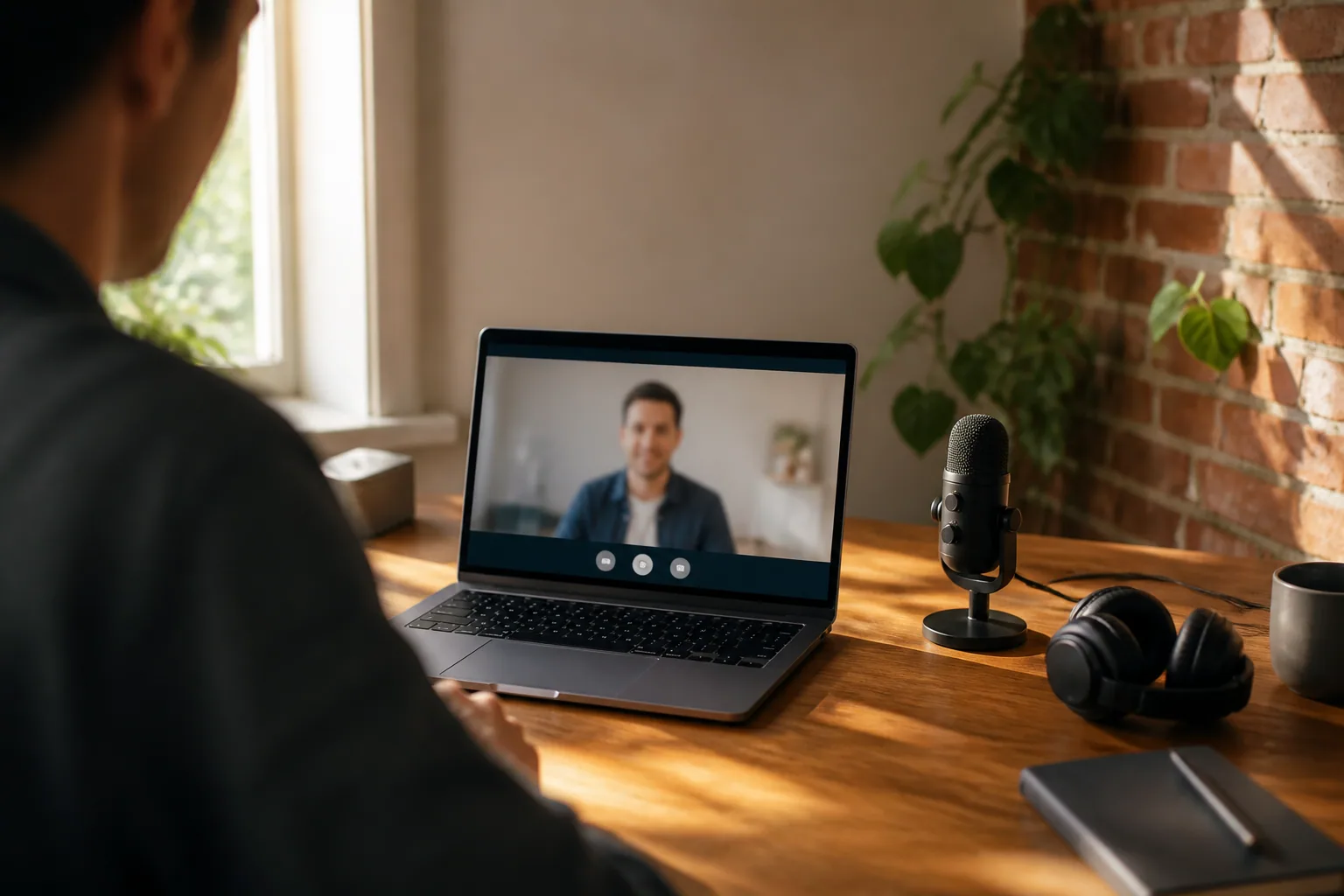
There is a real Google Meet test call, and it's better than people expect. Google runs no permanent test line; every Meet link instead drops you onto a pre-join screen Google calls the green room, carrying a button marked Check your audio and video. That's the test. It records a few seconds of you and plays them back, so you know whether your setup works.
It's a pre-flight, not a repair job. A properly broken webcam wants a diagnosis ordered by likelihood, which is what our guide to a dead webcam is for. This is the ordinary case: a call in ten minutes, someone who matters on the other end.
The green room is the test call
Google shipped the self-check in February 2021 and has extended it since. The pre-join screen carries a live tile of your camera, your three peripherals along the bottom, each behind a dropdown. Click the microphone and talk; a level bar moves. Click the speaker, then Test speakers.
The fuller version sits behind the Check your audio and video button: its own panel, which walks your devices, records a short clip of you talking and replays it. Hearing your own voice come back is odd the first time and the most useful part of the whole exercise — it's how you learn the laptop mic is also recording the dishwasher. Google says it checks your network too, and shows what noise cancellation does to your voice.
Running the check, step by step
- Open the link, or make your own. No meeting yet?
meet.google.com→ New meeting → Start an instant meeting. - Stop at the pre-join screen. Don't press Join now; everything below happens unobserved.
- Choose your devices. Each dropdown in turn: the mic, speaker and camera you actually mean to use.
- Test mic and speakers. Click Microphone and talk; the bar should move. Then Speaker → Test speakers.
- Run the self-check and watch it back. Record the clip, play it, judge it as a stranger would.
- Fix, then join. Lamp in front, laptop raised, closer to the mic, headset on if the room rings.
The instant-meeting route is underrated. Most people assume a test needs a real meeting, so they borrow two minutes of someone else's call to ask whether they can be heard. An instant meeting takes ten seconds and notifies nobody.
What the green room checks, and what it can't see
Worth internalising: the self-check tests your end of the wire. It proves sound goes into your machine and comes back out. It can't prove the eleven people about to arrive will hear you, and most pre-call disasters live in that gap.
| What you want to know | Green room answers it? | How to cover the gap |
|---|---|---|
| Right mic, camera and speaker selected? | Yes | Switch from the dropdowns under the tile |
| Browser and OS letting Meet in? | Yes, with a tip | Fix whichever of the three layers is blocking |
| How I look and sound to other people? | Yes, via the recorded clip | Watch it critically; move the lamp or laptop |
| Can the other side actually hear me? | No | Instant meeting, rejoined from your phone |
| Connection holds with everyone on video? | Only partly | Quit the sync client; sit nearer the router |
| Does screen share work, with audio? | No | Share the deck inside a solo instant meeting |
Pick your devices, then pick them again
Those dropdowns are the highest-value control on the screen and the one everybody scrolls past. Laptops guess badly: a monitor arrives and sound moves to its tinny panel speakers; a headset takes the mic but not the output; a dock vanishes and a dead webcam lingers.
Echo is a device-matching problem. Google's documentation names it directly: mismatched microphone and external speaker devices cause echo. If your voice returns to everyone a beat late, no in-meeting setting fixes it — one device handling both directions does.
Three layers of permission, and people fix the wrong one
The site
First time you join, Chrome asks whether meet.google.com may use your camera and mic. Pick Allow on every visit. Hit Block once in a hurry and that choice still stands months later.
The browser
Undo it at chrome://settings/content/camera (swap in microphone for the other one). Check the default lets sites ask, then move https://meet.google.com:443 out of the blocked list. Quicker: click the camera icon in the address bar, allow, reload.
The operating system
This layer trips people up, because the app you're granting is the browser, not Meet. On macOS: System Settings, Privacy and Security, Camera, and tick whichever browser you join in. Meet never appears there, so don't hunt for it. Windows 11: Settings, Privacy and security, Camera. ChromeOS: Settings, Privacy and security, Privacy controls.
Phones, and rooms you don't own
The Meet mobile app is a slimmer version of the same screen: camera preview, mic and video toggles, front-and-rear switch. Missing is the record-and-playback loop, the part that tells you the truth about your audio. Workaround: start an instant meeting on the phone, rejoin from a muted laptop, talk.
Conference rooms add hardware nobody owns. Book the room ten minutes early, start an instant meeting from the controller, and confirm the display wakes, the camera frames seats rather than ceiling, and sound leaves the room speakers. Since August 2025 a laptop inside a Meet hardware room also picks up an ultrasound signal from the room device, so the green room highlights Use Companion mode. Take the hint: the room's own audio carries the call, which is how you dodge the feedback howl.
Sixty seconds before something that matters
- Do Not Disturb on, chat apps quit. Screen sharing broadcasts your notifications.
- Close the bandwidth hogs. Cloud backup, a download, video in another tab.
- Open what you'll share, close what you won't. Hunting for a file live costs the room.
- Light in front of you. A window behind your head makes a silhouette no setting can rescue.
- Name who's capturing the outcome. Before minute forty, when people are already leaving.
Name a note-taker out loud, or let something capture it — it's the only item here that costs you after the call rather than during it. An AI meeting assistant like Laxis records Meet, Zoom and Teams calls without a bot joining as a visible participant, transcribes across 100-plus languages, and extracts action items with owners, on a free tier of 300 transcription minutes a month. Whether a Meet can be recorded at all is a licensing question, not a settings one, which we untangled in the guide to recording a Meet.
Make it the boring part of your calendar
People who never have technical trouble on calls aren't luckier. They moved the check earlier, to where fixing something is cheap: ten minutes out, a flat headset battery is an errand; two minutes out, it's an apology. After a few playbacks it collapses into a four-second glance at the preview tile — right for a Tuesday, nowhere near enough on the day it counts. If Meet is where your team lives, pick a note taker built for Google Meet before you need one.
Frequently asked questions
How do I make a Google Meet test call?
Open meet.google.com, click New meeting, then Start an instant meeting. You land in an empty call of your own. Before joining, click Check your audio and video on the pre-join screen to record a short clip and play it back. No invitation needed.
Is there an official Google Meet test call number or link?
No. Google publishes no permanent test meeting or echo line. The built-in equivalent is the green room, the pre-join screen you see before clicking Join now. It previews your camera, moves a level bar when your mic hears you, and plays a test tone.
How do I check my camera before a Google Meet?
Open the meeting link a few minutes early and look at the preview tile on the pre-join screen. If you can see yourself there, Meet can see you too. If the tile is dark, use the dropdown beneath it to pick a different camera.
Why can Google Meet not access my microphone in Chrome?
Usually a permission denied once and never revisited. Enter chrome://settings/content/microphone in the address bar and move meet.google.com into the allowed list. If it is already allowed, the block sits at the operating system level, where the app you approve is Chrome rather than Meet.
Can I test Google Meet on my phone?
Yes, with less to work with. The Meet app shows a preview and mic and camera toggles before you tap Join, but there is no record-and-playback loop on mobile. Instead, start an instant meeting on the phone and rejoin from a muted laptop.
How early should I test before an important call?
Ten minutes for anything with a client, a candidate or an audience in it, and the evening before if you are presenting. Ten minutes buys time to restart a browser or borrow a headset. Two minutes only buys the discovery that something is wrong.