How to Record a Google Meet (2026 Guide)
Google Meet has a perfectly good record button. The catch is that a large share of the people looking for it will never see it — because in Meet, recording isn't a feature of the app. It's a feature of the plan that owns the meeting.
So this guide does two jobs. It shows you how to record a Google Meet when the button exists — the exact clicks, what gets captured, where the file lands, how long Google takes to process it. And it diagnoses the more common situation, which is staring at the Meeting tools menu wondering why there's nothing to click.
Can you record a Google Meet? Check the plan before the clicks
Whether you can record has almost nothing to do with your settings and almost everything to do with whose Google account is behind the meeting. As of 2026, Google lists these editions as able to record:
- Business Standard and Business Plus
- Essentials and Enterprise Essentials
- Enterprise Starter, Enterprise Standard, and Enterprise Plus
- Education Plus (users with a Staff license) and the Teaching and Learning Upgrade
- Workspace Individual subscribers
- Google One subscribers with 2 TB or more of storage — the one consumer route onto this list
Read the gaps as carefully as the list. A free personal Gmail account can't record, full stop — there's no toggle, add-on, or amount of Drive storage short of that 2 TB Google One tier that changes it. Business Starter, the entry Workspace plan a lot of small teams sit on without realizing it, isn't on the list either. And in education, Education Fundamentals and Education Standard don't include recording for anyone — teachers included — which is why the feature seems to appear and vanish between school districts.
One more gate sits behind the plan: a Google Workspace administrator has to switch recording on for your organization in the Admin console. Plenty of companies pay for an eligible edition and still have the feature disabled, deliberately or by inertia.
The 20-second self-check: start an empty meeting from your own account, click Meeting tools in the bottom-right corner, and look for a Recording entry. If it's there, you're licensed and enabled. If it isn't, nothing you do inside Meet will conjure it — the fix is a plan change or an admin conversation, and it's better to learn that on a Tuesday than two minutes before a client call.
Who's allowed to press the button once it exists
Meet ties recording rights to the meeting's host, not just to your license. You can start a recording if any of these describes you:
- You're the meeting host.
- You're from outside the host's organization but were promoted to co-host.
- You're inside the host's organization and the host has left Host Management off.
- You're a teacher or co-teacher on a meeting created through Google Classroom.
The rule that surprises people: the host's permissions cap everyone's. If the organizer's account can't record — wrong edition, admin lockout, disabled account — then nobody in that meeting can, no matter how premium their own license is. When an external consultant with a full Enterprise plan joins a client's Business Starter meeting and finds no record option, this is why. The meeting inherits the organizer's ceiling.
If you're a guest who genuinely needs the recording, the practical move is to ask the organizer to either start it themselves or promote you to co-host. And if the organizer turns Host Management on, participants can't touch recording or transcripts at all — only the host and co-hosts can.
How to record a Google Meet, step by step
On a computer, the whole thing takes under a minute:
- Join the meeting fully. Don't join "just to present" from a second device — presentation-only sessions have no record option. Join normally first, then share your screen if you need to.
- Click Meeting tools in the bottom-right corner of the call, then choose Recording.
- Decide about captions. If you want subtitles embedded with the file, select Record captions and pick a language before you start.
- Click Start recording, then Start in the confirmation pop-up, and give it a moment to spin up.
- Watch the ceiling. A single recording runs for a maximum of 8 hours, then stops itself — relevant for all-day workshops more than standups.
- To stop: Meeting tools → Recording → Stop recording, and confirm. If everyone simply leaves, the recording ends on its own.
Hosts can also make this automatic. When you create the event in Google Calendar, open Video call options → Meeting records and tick Record the meeting — the recording then arms itself, though it won't actually begin until a host or co-host joins from the web. People joining a meeting set up this way see an on-screen warning before they enter.
What actually ends up in the file: the active speaker plus whatever's being presented — not the gallery view, and not your other windows or notifications. Pinning someone changes your screen, not the recording. Shared screens are captured at up to 1080p, and if continuous meeting chat is off, the in-call chat is saved alongside the video as an .SBV file that plays like subtitles in VLC.
Two sentences on the legal side, because it's the part you can't undo: depending on the state or country each participant is sitting in, you may need one person's consent or everyone's, and mixed-location calls default to the strictest rule in the room. We unpacked the consent laws properly in our guide to recording Zoom meetings, and every word of that section applies to Meet.
Meet does help you here mechanically. Every participant is notified when recording starts and stops — including people dialed in by phone — and since May 2026, Workspace admins can require explicit consent: each participant gets a dialog and must click Continue to stay in a recorded meeting, or Leave to exit before capture begins.
Where the recording lands, and how long the wait is
Every recording files itself into the Drive of the meeting organizer — specifically a folder named Google Meet, which gets a sub-folder per meeting. Note the owner: it's the organizer's Drive even if someone else pressed record. Google also sends an email with the link to two people — the organizer and whoever started the recording — and attaches the link to the Calendar event, where invitees from the organizer's own organization can open it. Attendees get shortcuts to the files in their Drive.
If you've recorded Meets for years and are wondering where "Meet Recordings" went: in July 2026 Google renamed that legacy folder to Legacy Meet Recordings and tucked it inside the new Google Meet folder. Old links still work; new recordings use the per-meeting sub-folders.
Then comes the wait. Meet recordings are not available the second the call ends — the file has to be generated, and Google publishes no timeline for it. In practice, a 30-minute call usually shows up within minutes and an all-hands can take hours; while it's cooking, the file in Drive wears a "Still processing" label. The email arriving is your real signal that it's done.
Can't wait for processing? You often don't have to. In Drive, select the still-processing file, click More → Download, and play the download locally — the raw file is frequently playable before Google finishes preparing it for online streaming. And check your storage before you record, not after: recording fails if either your personal Drive quota or your organization's quota is full, and the second one is invisible until it bites.
The missing record button, diagnosed
This is the actual question behind most searches for "can you record a Google Meet": the feature exists, you've seen it in other meetings, and today it's gone. Here's the diagnostic list, ordered by how often each one turns out to be the answer.
| What you're seeing | Likely cause | What fixes it |
|---|---|---|
| No Recording entry, free Gmail account | Free accounts don't include recording at all | Upgrade to an eligible edition, or capture notes with a third-party tool instead |
| No Recording entry on a work account | Business Starter plan, or an admin has recording switched off | Ask your admin to enable it (Admin console → Meet video settings → Recording) or upgrade the edition |
| Colleagues see the button; you don't | Host Management is on and you're not host or co-host | Ask the host to record, or to promote you to co-host |
| Your plan is premium; the button still isn't there | The organizer's account can't record — their ceiling applies to everyone | Have an eligible account re-create the meeting, or ask the organizer's side to record |
| Button vanished mid-meeting | You moved into a breakout room, which can't be recorded | Record from the main room only |
| No button when sharing slides | You joined in present-only mode | Leave, rejoin as a full participant, then present and record |
| No button on an ad-hoc room | The meeting was spun up by a conference-room device or a plug-in, not a person | Schedule it in Calendar, or have a person start the meeting |
| Recurring meeting lost recording | The original organizer's account was disabled | Delete the Meet link from the event and save to generate a fresh code under a new owner |
| Recording refuses to start | Drive is full — yours or the organization's — or Drive is disabled for you | Free up or add storage; ask the admin about Drive permissions |
| No button on an iPhone or iPad | The iOS app has no recording | Start the recording from a computer or Android device instead |
Recording from a phone: Android yes, iPhone no
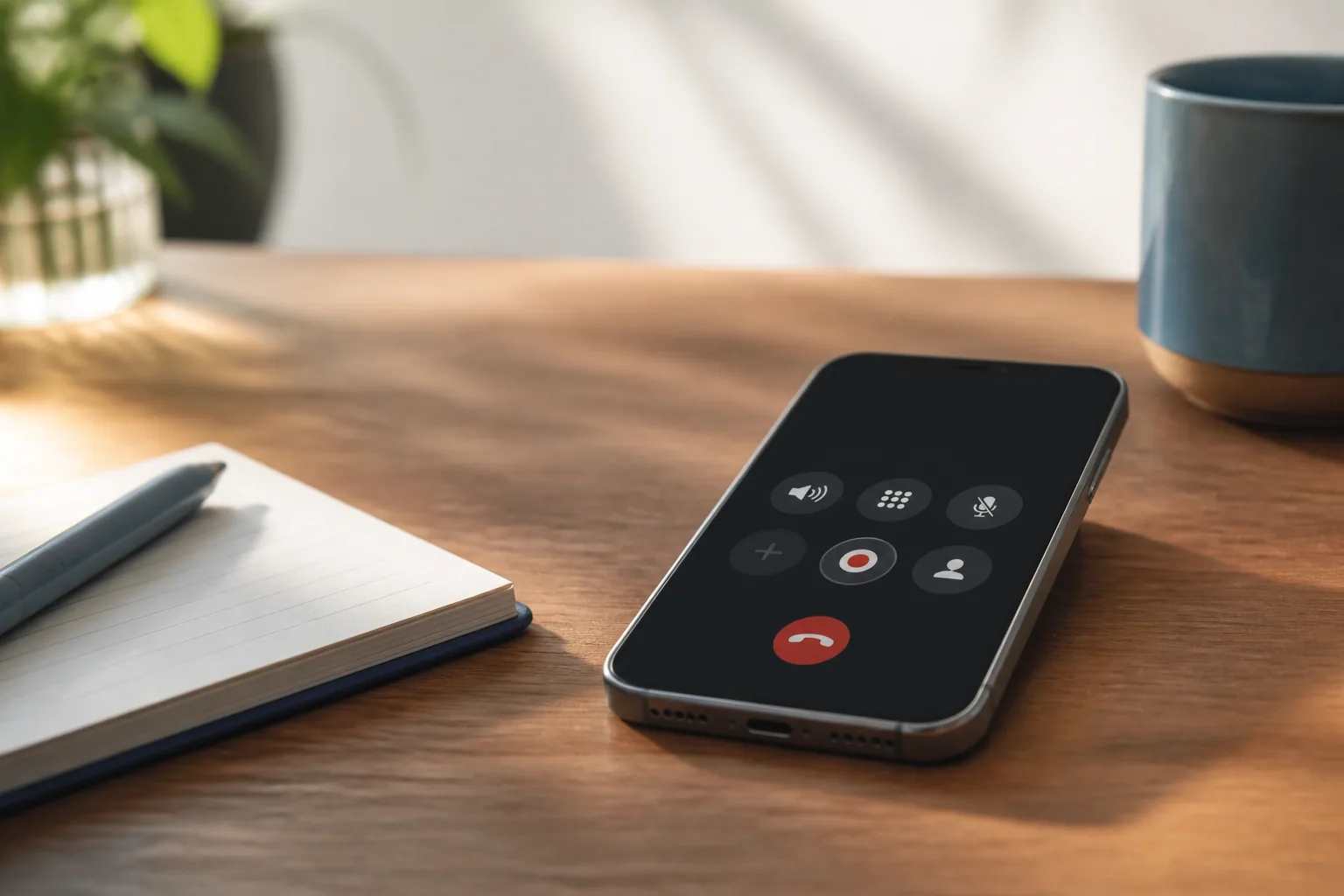
For years the answer to "can I record from the mobile app" was a flat no. That changed on Android: the Meet app now has recording under More → Tools → Record, with the same plan and host requirements as desktop, plus the same optional extras — you can include captions, start a transcript, or kick off Gemini notes from the same sheet before you tap Start.
iOS hasn't followed. There is no record option in the iPhone or iPad app as of this writing, and even Google's own documentation is mid-transition — the recording help page says "computer or Android device" while the troubleshooting page still claims computer-only. Treat desktop as the path that always works, Android as the new second option, and iOS as a device you join from while someone else records. One thing that hasn't changed: phone participants of every kind still hear the start and stop announcements, they just can't control the recording.
What we'd steer you away from is the iPhone's built-in screen recorder as a workaround. It captures your device audio path badly, produces no transcript, and — more to the point — runs outside Meet, so nobody gets the notification the platform would otherwise give them.
The recording is the archive. The transcript is the tool.
Half the time, people recording a Google Meet don't want a video at all — they want to be able to search what was said and pull out the decisions. Meet has a separate native feature for that: in eligible editions, Meeting tools → Transcribe generates a Google Doc of the spoken conversation, saved to the same Google Meet folder in the organizer's Drive, emailed to the host, co-hosts, and whoever switched it on, and attached to the Calendar event (unless the invite list tops 200 people from the host's org, in which case access narrows to hosts and the person who started it).
Its boundaries are worth knowing before you rely on it. Transcription supports eight languages — English, French, German, Italian, Japanese, Korean, Portuguese, and Spanish — captures spoken words only, and follows roughly the same edition list as recording, so free accounts are out. There's no pause; stopping and restarting produces separate files.
This is also where third-party AI note-takers earn their place, and not as a workaround so much as a different job. A tool like Laxis captures and transcribes the meeting without joining as a bot, works whether or not your Workspace edition includes recording (with 300 free transcription minutes a month), covers 100+ languages rather than eight, and turns the conversation into summaries and action items with owners instead of a wall of dialogue. Because it does the same on Zoom and Microsoft Teams — we've written the Teams version of this exact guide — your notes end up in one searchable place rather than scattered per platform. For a comparison of the tools in that category, our Google Meet note-taker roundup covers the field, and if your calls happen across languages, real-time translation is its own topic — covered in our guide to translating meetings live.
Capture every Meet — even the ones without a record button
Laxis transcribes and summarizes Google Meet, Zoom, and Teams calls in 100+ languages, extracts action items with owners, and syncs to HubSpot or Salesforce. Bot-free capture on desktop and mobile, with 300 free minutes every month.
The bottom line
Google Meet recording is a three-lock door: the organizer's edition has to include it, an admin has to have enabled it, and you have to hold host-level rights in that specific meeting. When all three line up, the mechanics are genuinely pleasant — two clicks, automatic filing in Drive, links delivered to your email and calendar without anyone thinking about it.
When the button's missing, resist the urge to fight the software. The button isn't broken; it's telling you which lock is closed. Figure out whether it's the plan, the admin, or the host, and you'll either fix it in one conversation — or know for certain that the capture layer for that meeting needs to come from somewhere other than Meet.
Frequently asked questions
Can you record a Google Meet on a free account?
No. Recording is a paid feature, so free personal Gmail accounts never see the record button. You need an eligible Google Workspace edition such as Business Standard, a Workspace Individual subscription, or a Google One plan with 2 TB or more of storage. On a free account, your realistic options are a third-party AI note-taker or asking a licensed host to record.
Why is the record button missing in my Google Meet?
Usually because the meeting organizer's plan doesn't include recording, an admin has switched it off, or you don't have host rights. Free accounts and Business Starter have no recording at all, and even eligible users lose the button in breakout rooms, on iPhones, or when they join only to present. Work through those causes in order and the culprit usually surfaces.
Where do Google Meet recordings get saved?
They land in the Drive of the meeting organizer, in a folder named Google Meet that gets a sub-folder per meeting. Google also emails a link to the organizer and to whoever started the recording, and attaches it to the Calendar event. Since July 2026, the old Meet Recordings folder lives on as Legacy Meet Recordings inside that new folder.
How long does a Google Meet recording take to process?
Google doesn't publish a fixed processing time. Short meetings often appear in Drive within minutes, long sessions can take hours, and the file shows a Still processing label until online playback is ready. If you can't wait, download the file from Drive and play it locally, which usually works sooner. Recorded captions can trail the video by a few more hours.
Can you record a Google Meet on a phone?
On Android, yes. Google added recording to the Android Meet app: tap More, then Tools, then Record, with the same plan and host requirements as desktop. There's still no record option in the iOS app, so iPhone and iPad users need to start the recording from a computer or ask another participant to run it.
Does Google Meet tell people when you record?
Yes. Every participant sees a notification when a recording starts and stops, and people who dial in by phone hear it too. Since May 2026, Workspace admins can go further and require each participant to explicitly consent before recording, transcription, or Gemini notes begin, choosing Continue to stay in the meeting or Leave to exit it.