How to Get a Google Meet Transcript (and Find It)

To get a Google Meet transcript, click Meeting tools at the bottom right during the call, choose Transcribe, then Start transcription. When the meeting ends, Meet saves the transcript as a Google Doc in the organizer's Drive, emails a link to the host, co-hosts and whoever started it, and attaches the Doc to the Calendar event.
The catch is getting that option to appear. Transcripts only exist on certain Google Workspace plans, in eight languages, on a computer or an Android device, and only for the right people in the meeting. If your toolbar has no Transcribe button, one of those is usually why. Steps below follow Google's Meet and Workspace Admin help as checked on November 16, 2026; if a label on your screen differs, look for “Transcribe” in the meeting's tools menu.
What you need before the Transcribe option shows up
| Requirement | What Google's help says |
|---|---|
| Plan | Business Standard, Business Plus, Enterprise Starter, Enterprise Standard, Enterprise Plus, Teaching and Learning Upgrade, Education Plus or Workspace Individual. Free Gmail accounts and Business Starter aren't on the list. |
| Device | A computer, laptop or Android device. Not iPhone or iPad. |
| Language | Eight: English, Spanish, Portuguese, French, Italian, German, Japanese or Korean. |
| Who can start it | Anyone from the host's organization when Host management is off; only the host and co-hosts when it's on. |
| Admin setting | On by default, except for Education accounts with a student licence. |
| Storage | Enough Drive space for both the organization and the meeting host. |
One wrinkle: Google's admin help lists fewer editions than its user help, so on Enterprise Starter, Teaching and Learning Upgrade or Workspace Individual, check with your admin if the option is missing.
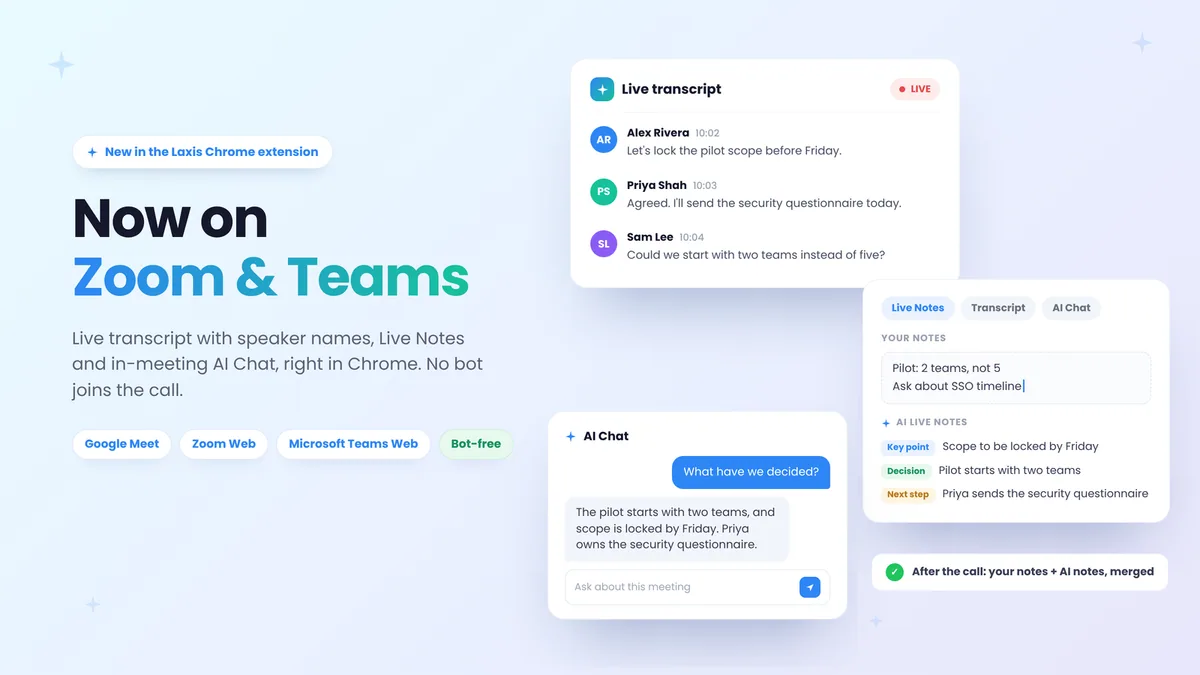
On a free Google account or Business Starter? The Laxis Chrome extension builds a live Meet transcript from the captions on the free Basic plan, with TXT, Word or PDF downloads. Get Laxis. 14-day Premium trial, no credit card.
Transcripts aren't the same as live captions, which every Meet user can switch on in dozens of languages. Captions appear only on your own screen; to keep them, you have to record the meeting with captions included. Recording is separate again, with its own plan rules, covered in how to record a Google Meet. And Gemini's “Take notes for me” writes summary notes rather than a verbatim transcript.
We compare its sharing rules with Copilot's and Zoom's in built-in AI meeting notes compared.
How to turn on transcripts in Google Meet
On a computer:
- Join or start the meeting in Google Meet.
- Click Meeting tools at the bottom right.
- Choose Transcribe, then Start transcription.
- Click Start in the pop-up. A Transcripts icon appears at the top for everyone in the call.
- To stop, open Meeting tools again, choose Transcribing, then Stop transcription, and confirm with Stop.
On Android, open the Meet app, start or join, then tap More, Tools, Transcribe, and Start. There's no equivalent on iPhone or iPad.
You can't pause a transcript; stopping and restarting gives you a second, separate file. Transcription ends by itself when everyone leaves. Only spoken words are captured, so if you need the chat, record the meeting instead. Hosts can make it automatic when scheduling, under Video call options, then Meeting records, then Transcribe the meeting; it starts once the host or a co-host joins, and people arriving see a warning that it's on.
Check your audio before the call that matters. A transcript is only as good as the microphone feeding it, and a muffled laptop mic turns names into guesses. Our Google Meet test call guide shows how to check your mic and camera in a minute.
Where Google Meet transcripts go
Google sends the transcript to three places:
- The organizer's Drive. Transcripts are saved in a folder called “Google Meet”, with a sub-folder per meeting. Google's help says that from July 2026, the folder that used to hold transcripts is renamed “Legacy Meet Recordings” and tucked inside the new one, so look there for older files.
- Email. The host, any co-hosts and the person who turned transcription on get a link.
- Google Calendar. The Doc is attached to the meeting's event, as long as the meeting was linked to an event and happened at the scheduled time.
Give it time. Google's admin help says transcripts usually appear within a few hours and can take up to 24, and longer meetings take longer. If you can't spot the folder, search Drive for “Transcript”, which Google puts in the file name after the meeting title and date.
Note whose Drive it is. Start a transcript in someone else's meeting and the file goes to their Drive; you get the email link. An instant meeting with no Calendar event has nothing to attach to.
Because the transcript is an ordinary Google Doc, downloading it works like any other Doc: open it, then File, then Download, and pick Word, PDF or plain text. The Doc also lists who attended, which makes it handy for attendance records.
Transcript option missing? Check these in order
1. Workspace edition
Free personal Google accounts don't get transcripts, and neither does Business Starter. Check your organization's plan against the table above.
2. Admin setting
Admins control transcripts in the Google Admin console under Apps, then Google Workspace, then Google Meet, then Meet video settings, then Meeting transcripts. They can apply it to the whole organization or to specific teams, and changes can take up to 24 hours. On Business Standard the setting can't be turned off. Drive must also be on for you, with permission to create Docs, because that's where the file goes. Some organizations also require each participant to consent before transcription starts, in which case you'll see a prompt to Start, Join, Continue or Leave.
3. Your role in the meeting
If the host has Host management on, only the host and co-hosts can start a transcript. Ask to be made a co-host, or ask the host to start it. With Host management off, anyone from the host's organization can; people from outside it can't.
4. Your device
On iPhone or iPad you won't find the option at all. Join from a computer or an Android phone, or ask someone who is to start it.
5. Language
Transcripts cover eight languages. A meeting held in Hindi, Mandarin or Dutch will show captions, since Meet captions many more languages, but you won't get a transcript file. Google's admin help says automatically generated meeting records follow the language the host chose in their Meet recording settings, so a host whose language is set wrongly can derail the result.
6. Drive storage
Both the organization's Drive and the host's Drive need room. If the host's storage is full, the transcript can't be saved.
Who can open, edit or share the transcript
The Doc belongs to the meeting organizer. Google's admin help says the organizer, the meeting hosts and whoever started transcription get edit access automatically, and that invitees get edit access too when there are fewer than 200 of them. Google's Meet help describes it from the invitee's side: people in the host's organization can open the Calendar attachment, unless more than 200 of them were invited, in which case only the host, co-hosts and the person who started it can.
Invited from outside the organization and can't open it? Ask the organizer to share the Doc like any other file. Edit access is generous, too: anyone holding it can move, share or rename the transcript, so after a sensitive meeting it's worth tightening the sharing.
When Meet's transcript isn't available to you
If your organization is on a qualifying Workspace plan and meets in one of the eight languages, the built-in transcript is the obvious choice. It's free with the plan, lands in Drive with the meeting's other files, and follows your admin's retention rules. Nothing to install.
It runs out in a few common situations: you're on a free Google account or Business Starter; you're a guest in another company's meeting; the conversation is in a language outside the eight; you're on iPhone; or your meetings are spread across Meet, Zoom and Teams.
For those, the Laxis AI meeting assistant is bot-free by default. On Meet, Laxis's Chrome extension works from the captions Meet generates for everyone, so free accounts can use it: the Basic plan includes a live transcript with speaker names and TXT, Word or PDF downloads, and Premium adds Live Notes and in-meeting AI Chat. Because it relies on captions, it covers the languages Meet captions (the extension lists 60+) and only the parts of a meeting you were present for. On a laptop, the Laxis desktop app listens to your computer's audio in 60+ languages, and the mobile app handles in-person meetings. If your Teams calls need the same treatment, our guide to Teams transcripts covers that side.
Some limits to weigh. Processing happens in Laxis's cloud. Laxis isn't HIPAA compliant and doesn't offer BAAs, which rules it out for patient conversations. The free plan's 300 monthly minutes are one pool for meetings and dictation, and a single recording can run 45 minutes. Capturing a meeting without a bot is still recording it, so let the room know; Laxis reminds you before you start. Consent rules differ between states and countries and nothing here is legal advice; our guide to recording consent in each state and country sets out the basics. Wider options are in our best AI note taker for Google Meet roundup.
Get Meet transcripts, whatever your Google plan. Bot-free notes across Google Meet, Zoom, Teams and Webex, in 60+ languages, all in one archive. 14-day Premium trial, no credit card. Try Laxis on your next call
Frequently asked questions
Does Google Meet have transcription for free?
No, Google Meet transcripts aren't available on free personal Google accounts. You need a paid Google Workspace edition that includes them, for example Business Standard or Plus, Enterprise Standard or Plus, Education Plus or Workspace Individual. Free accounts still get live captions, which show subtitles on your own screen during the call but don't produce a transcript file.
Where do Google Meet transcripts go?
Google Meet saves each transcript as a Google Doc in the meeting organizer's Drive, in the Google Meet folder, with a sub-folder per meeting. The host, co-hosts and the person who started it also get an email link, and the Doc is attached to the Calendar event. Google says it can take up to 24 hours to appear.
Why don't I see the transcribe option in Google Meet?
The Transcribe option is missing when your Workspace edition doesn't include it, your admin turned it off, Host management limits it to hosts and co-hosts, or you're on iPhone or iPad. Check those in that order. People from outside the host's organization can't start a transcript, and Meet only transcribes eight languages.
What languages does Google Meet transcription support?
Google Meet transcripts work in eight languages: English, Spanish, Portuguese, French, Italian, German, Japanese and Korean. Live captions cover far more, many of them in beta, but captions don't create a saved transcript. For meetings in other languages you need a third-party tool that transcribes the audio or captures the captions.
How do I download a Google Meet transcript?
Open the transcript Doc from the email link, the Calendar event or the organizer's Drive, then choose File, Download and pick Word, PDF or plain text. It's an ordinary Google Doc, so normal sharing rules apply. If you can't open it, ask the organizer or the person who started the transcript to share it with you.
Can I get the transcript of a Google Meet I didn't host?
Yes, if you were invited and belong to the host's organization: the transcript is attached to the Calendar event, and invitees from that organization can open it unless more than 200 were invited. If you were invited from another organization and can't open it, ask the organizer to share the Doc with you.
Related Product
Laxis Meeting Assistant
Automate your notes today.
- Bot-free notes for Zoom, Google Meet, Teams and in-person meetings
- AI summaries, action items and follow-ups in 60+ languages
- Mac, Windows, iPhone and Android, with a free plan
Start for free, no credit card required.
Learn More ▷