AI Note Taker Chrome Extension for Zoom and Teams
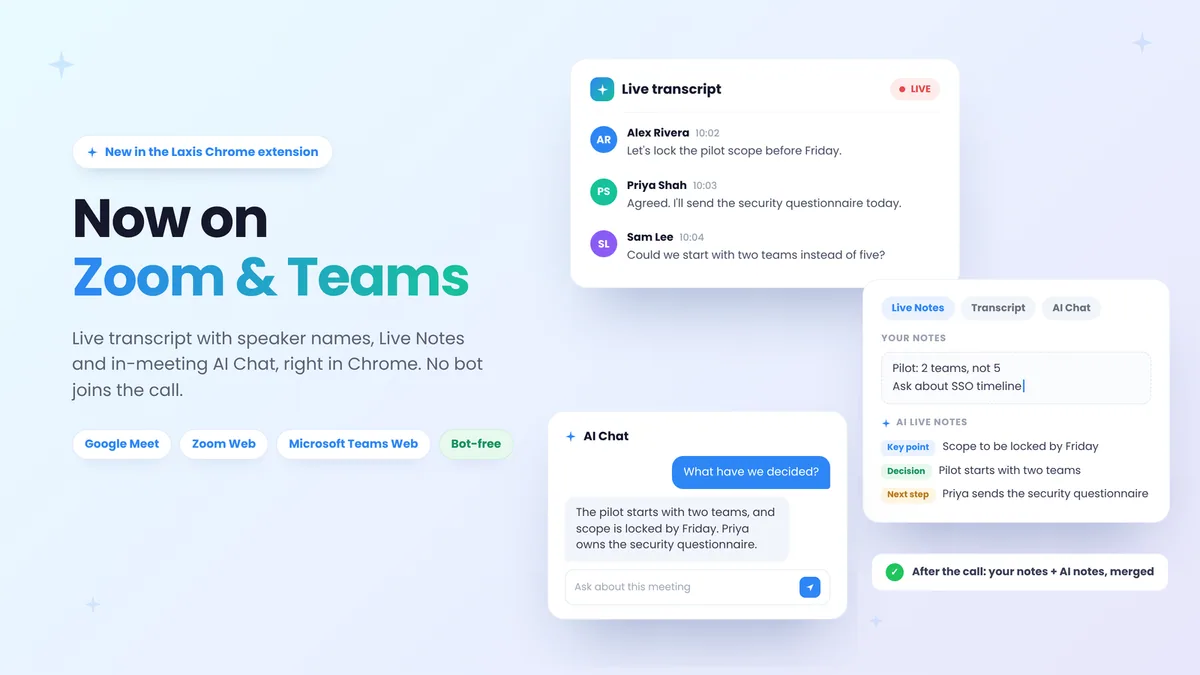
The Laxis AI note taker Chrome extension now works on Zoom and Microsoft Teams in the browser, not just Google Meet, so if your calls hop between all three, one install covers them. Version 4.6.1, live on the Chrome Web Store since September 27, 2026, also adds Live Notes and an AI Chat you can use while the meeting is still running.
Laxis has long captured Zoom and Teams meetings through its desktop app and meeting assistant. The extension was the piece still limited to Google Meet. Not anymore.
Before you install: the extension works in meetings you join in Chrome, meaning the Zoom web app and Teams on the web. It can't see the Zoom or Teams desktop apps. If that's how you usually join, use the Laxis desktop app instead; it doesn't add a bot either.
What's new in version 4.6.1
Zoom and Teams support, in the browser
Open a meeting in Zoom's web app or Teams on the web and you get the side panel Meet users already know: a running transcript with speaker names, one-click highlights in red, yellow or green, and a download button at the end. Nothing joins the call: no extra tile in the grid, nobody new in the lobby.
The extension works by reading the live captions the platform generates. That's how it stays bot-free, and it's why language coverage follows the platform: 60+ languages, depending on the captions each call offers. Bot-free isn't invisible, though, so tell people you're taking notes, as you would if you opened a notebook.
Zoom, Google and Microsoft each build AI notes into their own platforms, and they're worth a look if all your meetings live in one place. Laxis is for the mix: one extension across all three, your notes merged with the AI's, and no bot. Our guides to the best AI note taker for Zoom and AI note takers for Microsoft Teams compare the wider field. And on Meet, the extension that has handled calls since 2021 gets the new features too.
Live Notes: your notes and the AI's, side by side
A lot of AI note taking assumes you'll stop writing things down. We'd rather you didn't. Your notes record what mattered to you, like the number a client hesitated on, and the AI catches the rest while you're talking.
Live Notes gives you both. You type your own notes during the call while Laxis AI writes live notes beside them, pulling out key points, decisions and next steps. When the meeting ends, Laxis combines the two into one set of polished meeting notes. Live Notes is a Premium feature.
AI Chat, while the meeting is still going
Laxis has let you question saved meetings in plain language since 2023. What's new is asking mid-call. Joined ten minutes late? Type "What have we decided?" Wrapping up? Ask "What are Alex's action items?" It can also help with a question you weren't expecting, or suggest an icebreaker when things stall. AI Chat is Premium as well.
How to get started
- Install the extension. Add Laxis from the Chrome Web Store.
- Open the meeting in Chrome. For Zoom, pick Join from your browser after clicking the invite link. For Teams, pick Continue on this browser.
- Let the panel launch. Laxis opens its side panel on its own and shows the live transcript once captions are available. Panel empty? See troubleshooting.
- Take notes and ask questions (Premium or 14-day trial). Write in Live Notes and ask AI Chat as the meeting runs. On Basic, you still get the live transcript.
- Download or save. Export the transcript as TXT, Word or PDF, with optional timestamps and highlights, or sign in to save the meeting to Laxis Cloud.
What's free and what's Premium
| In the Chrome extension | Basic (free) | Premium |
|---|---|---|
| Live transcript in the side panel, with speaker names | Yes | Yes |
| Transcript download as TXT, Word or PDF | Yes | Yes |
| Live Notes (your notes plus AI live notes, merged afterwards) | No | Yes |
| In-meeting AI Chat | No | Yes |
| Price | $0 | $15.99/user/mo, or $9.99/mo billed yearly |
Every new account starts with a 14-day Premium trial, no credit card, so you can try Live Notes and AI Chat on real meetings before deciding. Afterwards the account moves to Basic and keeps its notes. Plan details are on the pricing page.
What the extension doesn't do
It doesn't work in the Zoom or Teams desktop apps. Plenty of people join Zoom from the desktop client out of habit, so check which window you're in. For those meetings, the Laxis desktop app captures your computer's audio, still bot-free.
It doesn't record audio or video. It turns captions into text. For audio, use the desktop app, or invite the optional Laxis AI meeting assistant, which joins as a visible participant.
It can't transcribe what the platform doesn't caption. No captions, no transcript, and caption quality caps transcript quality.
If the transcript is empty
Usually it means there are no captions for Laxis to read. Check, in order:
- Check you're in the browser. Zoom and Teams links often hand off to the desktop app. On Zoom, look for Join from your browser; an admin can hide that link, and Zoom says it won't appear when the host uses end-to-end encryption. On Teams, choose Continue on this browser.
- Turn captions on. In the Zoom web app, click Show Captions (the CC icon) in the meeting controls. In Teams on the web, open More actions, then Language and speech, then Show live captions. In Google Meet, click Turn on captions.
- No captions button? On Zoom, Request captions means the host restricted them; send the request. If there's nothing, automated captions are likely off for the account, and the host or an admin can switch on Automated captions in the web portal's meeting settings, under In Meeting (Advanced). Teams admins can turn live captions off organization-wide; ask IT.
- Garbled text? Fix the spoken language: Caption language next to Zoom's captions button, or Meeting spoken language in Teams caption settings.
Menus move. If a label here doesn't match your screen, look for "captions" in the meeting toolbar or its More menu.
Frequently asked questions
Does the Laxis Chrome extension work with the Zoom or Teams desktop app?
No, the Laxis Chrome extension works in meetings you join in Chrome: Google Meet, the Zoom web app and Microsoft Teams on the web. It can't see meetings in the Zoom or Teams desktop apps. For those, use the Laxis desktop app, which captures your computer's audio without adding a bot.
Is the Laxis Chrome extension free?
Yes, the extension is free to install, and the Basic plan includes the live transcript with speaker names plus TXT, Word or PDF downloads. Live Notes and in-meeting AI Chat need Premium: $15.99 per user per month, or $9.99 a month billed yearly. New accounts get a 14-day Premium trial, no credit card.
Does the Laxis extension record audio or video?
No, the extension doesn't record audio or video. It reads the live captions that Google Meet, Zoom or Teams generates and turns them into a transcript with speaker names. To capture meeting audio, use the Laxis desktop app or invite the optional Laxis meeting assistant.
Why is my Laxis transcript empty on Zoom or Teams?
An empty transcript almost always means the meeting has no live captions for Laxis to read. In the Zoom web app, click Show Captions. In Teams on the web, open More actions, then Language and speech, then Show live captions. If there's no such option, the host or an admin has likely turned captions off.
What languages does the Laxis Chrome extension support?
The Laxis Chrome extension supports 60+ languages, including English, French, German, Portuguese, Spanish, Japanese and Chinese. It reads the platform's own captions, so what works in a call depends on the caption languages Google Meet, Zoom or Teams offers. Set the spoken language correctly, or the transcript comes out garbled.
What is Live Notes in the Laxis Chrome extension?
Live Notes is a panel where you type your own notes during the call while Laxis AI captures key points, decisions and next steps beside them. After the meeting, Laxis combines both into one set of polished meeting notes. It's a Premium feature that every new account can use during the 14-day trial.