How to Transcribe Voice Memos on iPhone (Step-by-Step)
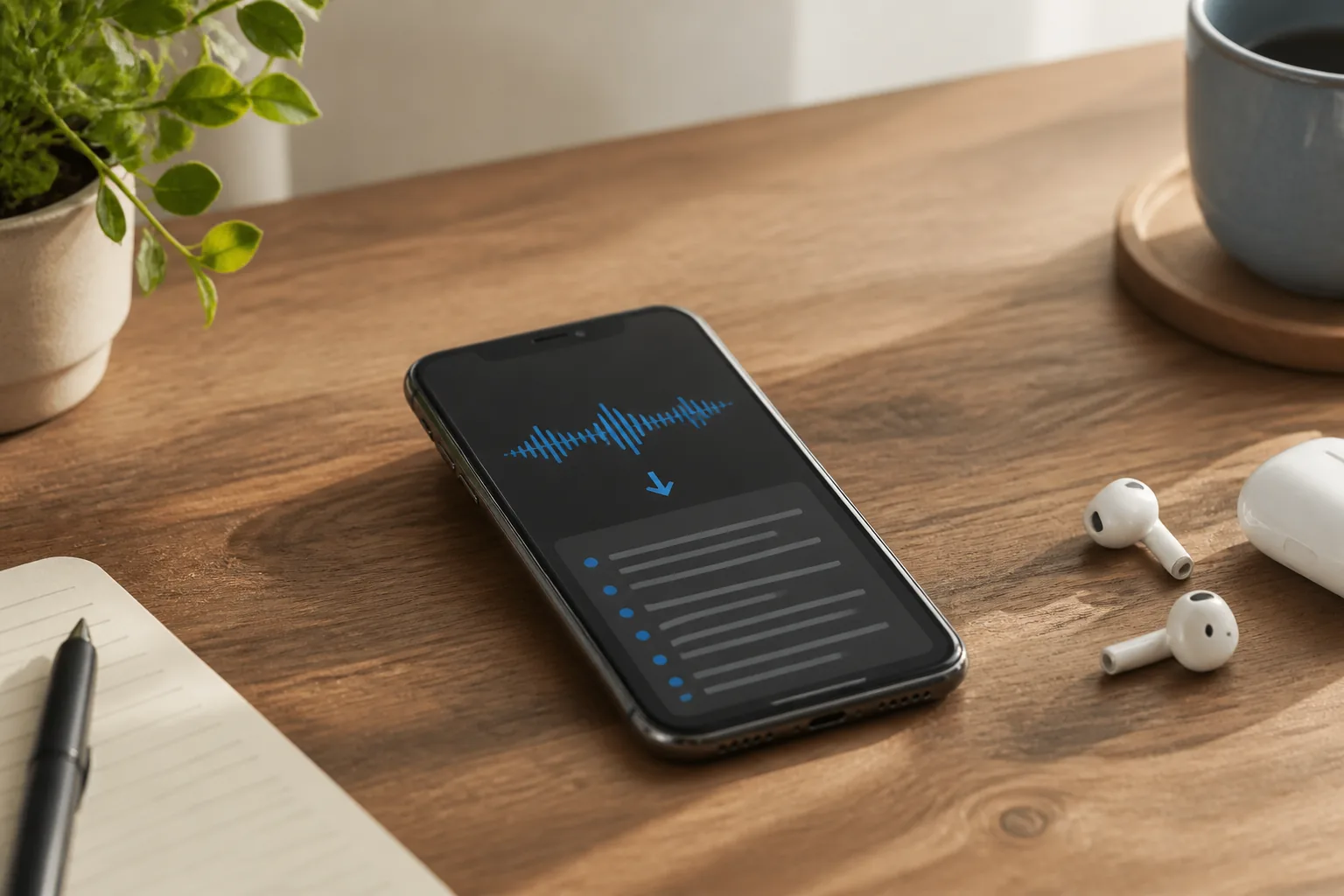
You're walking back from a meeting, half-formed idea bouncing around your head, so you pull out your phone and ramble into Voice Memos for ninety seconds. Two days later you need that idea written down. And the thought of replaying the whole thing, pausing every five seconds to type, makes you want to forget you ever had the idea.
Good news: you probably don't have to. Learning how to transcribe voice memos on iPhone takes about thirty seconds, because Apple finally built transcription straight into the app. The bad news, and there is some, is that the native tool is fussier than the headlines suggest. So let's walk through exactly how it works, where it quietly falls apart, and what to reach for when it does.
The native way: transcribe voice memos right inside the app
Apple added built-in transcription to Voice Memos in iOS 18. Before that, the app could only record. If you wanted text, you were copying audio into some other tool. Now, if your iPhone is running iOS 18 or later and it's an iPhone 12 or newer, the app transcribes recordings on its own, on-device, with nothing to switch on.
Here's the part people miss: there's no "Transcribe" button that kicks off a job. The transcript is just sitting there, generated quietly, waiting for you to look at it. You only have to know where the button hides.
How to view and copy a voice memo transcript
- Open the Voice Memos app and tap the recording you want.
- Look for the small transcript button shaped like a pair of quotation marks. It's the same icon Apple uses for song lyrics in Music.
- Tap it and choose View Transcript. The text appears, and it scrolls along as the audio plays.
- To grab a piece of it, select the text you want and tap Copy.
- To grab all of it at once, choose Copy Transcript from the same menu.
- Paste into Mail, Notes, Messages, or any text field. To send the recording and its transcript together, use the standard Share button.
That's the whole flow. No account, no upload, no waiting on a progress bar. And if you have an iPhone with Apple Intelligence, you can run Writing Tools on the transcript to summarize or tighten it with a tap, which is genuinely handy for turning a rambly note into two clean sentences.
Tip: record in a quiet room whenever you can.
The single biggest factor in transcript quality isn't the software, it's the input. A memo dictated in a silent office comes back close to perfect. The same memo recorded next to a coffee grinder or on a windy street comes back full of guesses. If accuracy matters, step into a stairwell or a parked car for thirty seconds.
Where the native transcript quietly falls short
For a quick solo note, the built-in feature is great. Push it past that and the cracks show, and they're worth knowing before you trust it with something important.
Language coverage is limited. As of iOS 18, transcription works in English (all variants), Spanish, French, German, Italian, Portuguese, Japanese, Korean, Simplified Chinese, and Traditional Chinese. That's roughly ten language groups, not the dozens you might expect, and it isn't available in every country. There's a subtler trap too: the app transcribes based on your phone's system language, not the language you're actually speaking. Record in Spanish on an English-set iPhone and you get nonsense.
Accuracy sags on hard audio. For one clear speaker in a quiet room, expect somewhere around 85 to 90 percent accuracy. That sounds high until you do the math: in a 500-word note, 10 percent wrong is 50 words you have to fix. Throw in background noise, a strong accent, or industry jargon and the number slides further.
There are no speaker labels. This is the big one for anyone recording a conversation. Voice Memos was built to capture a single person, so a two-way chat comes back as one unbroken block of text with no sense of who said what. Long, multi-speaker recordings are exactly where you'd most want a transcript, and exactly where the native tool is weakest.
Transcribing older memos and audio from elsewhere
Two common situations the built-in feature doesn't obviously cover: the pile of memos you recorded years ago, and audio that never lived on your iPhone in the first place.
The old memos are the easy case. Once your phone is on iOS 18 or later, just open an older recording. As long as it contains speech, Voice Memos transcribes it automatically, the same way it handles new ones. There's no batch button and no separate conversion step, so if you've got fifty old notes you care about, you'll be opening them one at a time. Annoying, but it works.
Audio from somewhere else, a Zoom export, a WhatsApp voice note, an interview recorded on a friend's Android, is trickier. The native transcription only applies to recordings made and stored in the Voice Memos app. If you can play the file out loud, one low-tech workaround is to record it back into Voice Memos, but you'll lose quality and pick up room noise, which hurts accuracy. This is usually the moment people stop fighting the native tool and bring in something purpose-built. Laxis, for example, is an AI meeting assistant that transcribes uploaded audio and live calls across more than 40 languages, adds speaker labels, and writes a summary, so a downloaded recording becomes searchable text without the re-record dance. That's a different job than jotting a quick personal note, which is exactly the point.
Tip: a decent external mic beats any software upgrade.
No transcription engine, Apple's or anyone's, can recover words the microphone never clearly caught. A $30 lavalier clipped to your collar, or even just holding the phone closer to your mouth, does more for accuracy than switching apps. Clean audio in, clean text out.
When to use a third-party app instead
If the native feature covers your needs, don't overthink it, it's free and it's already on your phone. You'd look elsewhere when you keep hitting one of its walls. Here's the honest tradeoff with the main alternatives.
Dedicated transcription apps (the standalone voice-to-text tools) usually handle file uploads, support more languages, and let you export clean documents. The catch is most charge a subscription or per-minute fee once you pass a small free tier, and many still don't separate speakers well.
AI meeting assistants are the right fit when the recording is a conversation, a sales call, a client meeting, a two-person interview. They identify who's talking, pull out action items and decisions, and draft a summary you can actually skim. The tradeoff is they're built around meetings and calls, so they're overkill for a five-second grocery reminder.
The honest framing is this: personal voice memos are perfect for capturing a quick idea before it evaporates, and the native iOS feature serves that beautifully. But for meetings and calls, you want speaker labels, summaries, and action items, and that's where an AI meeting assistant like Laxis earns its keep. It transcribes and summarizes across 40+ languages and works with Zoom, Google Meet, and Teams, so the output is a structured record instead of a wall of unattributed text.
Quick notes for you, structured records for your meetings
Keep using Voice Memos for the ideas that pop up between meetings. For the meetings themselves, let Laxis capture every speaker, summary, and action item automatically, in 40+ languages, with a free plan to start.
The bottom line
The most useful habit here isn't a tool at all, it's matching the recording to the job before you hit record. Decide in the first second whether this is a throwaway note to yourself or something you'll need as accurate, attributed text later. That one judgment call determines whether Voice Memos is plenty or whether you should be recording somewhere built for the heavier lifting. Get the input right and the transcription, native or otherwise, mostly takes care of itself.
Frequently asked questions
Does the iPhone transcribe voice memos automatically?
On iOS 18 or later, yes. Voice Memos generates a transcript for any recording that contains speech, on-device, with no setup. You open a memo and tap the quote-marks button to read it. The feature works on iPhone 12 and newer in a set of supported languages including English, Spanish, French, German, Italian, Portuguese, Japanese, Korean, and Chinese.
How do I copy or share a Voice Memos transcript?
Open the memo, tap the quote-marks transcript button, and choose View Transcript. To copy part of it, select the text and tap Copy. To copy the whole thing, choose Copy Transcript, then paste it into Mail, Notes, or any text field. You can also use the standard Share button to send the audio along with its transcript.
Can I transcribe older voice memos recorded before iOS 18?
Yes. Once your iPhone is on iOS 18 or later, open an older recording and Voice Memos will transcribe it automatically as long as it contains recorded speech. There is no separate button to convert old files. If a memo predates the feature and has speech in it, the transcript appears the same way it does for new recordings.
Why is my voice memo transcript wrong or garbled?
Voice Memos transcribes based on your iPhone's system language, not the language being spoken. If you record in German on a phone set to English, the result will be garbled. Accuracy also drops with background noise, strong accents, technical jargon, and multiple speakers talking over each other. For a single clear speaker in a quiet room, accuracy is usually around 85 to 90 percent.
Does Voice Memos label who said what?
No. The native transcript has no speaker labels, so a two-person conversation comes back as one undivided block of text. If you need to know who said which line, you'll want a dedicated meeting or transcription tool that does speaker diarization, since Voice Memos was built for single-speaker capture.