Live Captions for Hearing Loss in Meetings: A Guide
Live captions for hearing loss used to mean a special request and a week's notice. Now there's a captions button in every major meeting app, and another built into most phones and laptops. That's real progress, but anyone who has leaned on them through a long Teams call knows the gaps: names mangled, two people talking at once turned into one garbled line, and the in-person meeting where nothing switches on at all.
This guide is for people who are deaf or hard of hearing and the colleagues who set up their meetings. If you searched for speech to text for hearing impaired users, you're in the right place; we say "deaf" and "hard of hearing" because many people prefer those terms. We describe what tools document and what people report; for hearing aids and listening devices, ask an audiologist.
Start with the captions your meeting app already has
Microsoft Teams, Zoom and Google Meet all generate automatic captions in the language being spoken, without an add-on license. On Zoom they're on by default for paid accounts, though a host can restrict who turns them on. Translated captions are a separate, licensed feature. Here's how to switch captions on and make them big enough to read comfortably:
- Teams, turn on: In the meeting controls, open More actions and choose Captions; older versions use Language and speech → Show live captions.
- Teams, make readable: beside the captions, choose Caption settings and then Caption styles to change font size and color, show more lines or move the captions. These options are in the desktop app for Windows and Mac.
- Zoom, turn on: click Show captions in the toolbar (it may sit under More). If the host has restricted captions, you'll see Request captions instead, which sends the host a request.
- Zoom, make readable: click the arrow next to Show captions (or hover over the captions and click the gear icon), choose Caption settings and move the Font size slider. You can also pick colors and a font, or pop the captions out into a box you can resize. Switch on Always show captions in meetings and webinars under Settings, Accessibility so you never have to hunt for the button.
- Google Meet, turn on: click Turn on captions at the bottom of the meeting. The captions appear only for you.
- Google Meet, make readable: open More, then Settings, then Captions, and under Customize your captions set the font, font size, font color and background color.
Steps checked on October 11, 2026 against the official pages from Microsoft, Zoom and Google. Menu labels do move, so look for the captions icon if one differs.
Two things decide caption quality more than the platform. One is the spoken language setting: if Zoom expects one language while people speak another, the captions come out wrong. The other is microphones; Microsoft's advice is to speak close to the mic, avoid background noise and not talk over each other. And even accurate captions leave you reading, talking and taking notes at once, which is hard work in itself. We'll come back to that last part.
Small asks that improve captions
Headsets for anyone on a laptop microphone. One person speaking at a time. Slides and agenda the day before, so unfamiliar names aren't a surprise.
Captions that follow you into every app
Your phone and computer can caption audio themselves, in any app: a webinar tool with no captions, a training video, a WhatsApp call.
| Device | Where to find it | Worth knowing |
|---|---|---|
| iPhone 11 or later | Settings, Accessibility, Live Captions | Caption iPhone audio or the microphone; full-screen view; text size and color under Appearance |
| Mac with Apple silicon | System Settings, Accessibility, Live Captions | Switch between computer audio and the microphone; choose font, size and colors; Type to Speak lets you reply by typing |
| Windows 11 (22H2 or later) | Windows key + Ctrl + L | Dock captions above or below the screen; add microphone audio; live translation on Copilot+ PCs |
| Android (Pixel and selected phones) | Volume button, then Live Caption | Expand the caption box; captions phone and video calls; Live Transcribe app for conversations around you |
Sources: Apple's guides for iPhone and Mac, Microsoft's Windows guide and Google's Android guide. Mac, Windows and Android's Live Caption process audio on the device. Language support varies, and Apple says Live Captions shouldn't be relied on in high-risk or emergency situations. On Windows, docking captions above the screen can keep them clear of shared slides.
One habit worth keeping: in group calls, the meeting app's own captions usually do better than your phone's system captions.
When automatic captions aren't enough: CART
CART, short for communication access real-time translation, is captioning by a trained person who types everything said, using stenography or a phonetic keyboard. It costs money and takes booking, and for some meetings it's plainly right: performance reviews, HR conversations, training, all-hands meetings, technical discussions dense with names, or any time automatic captions keep failing you. For people who sign, captions don't replace a sign language interpreter.
In Teams, the organizer turns on Provide CART captions in Meeting options and sends the captioner the CART link. In Zoom, the host enables manual captioning with the caption API token setting, chooses Set up manual captioner in the meeting and copies the API token into the captioner's software. Elsewhere, ask the provider how the text will reach you. Either way, set it up early and send the captioner names and jargon in advance.
In-person meetings: the hardest case
A conference room has no captions button. Unless it's also a video call, everything above disappears, and that's where many hard-of-hearing professionals say meetings get hardest: side conversations, people facing a whiteboard, laughter over the key sentence.
The quickest fix is in your pocket. Live Captions on iPhone, set to the microphone, or Live Transcribe on Android puts the room's speech on screen for free. In a meeting, though, a phone hears the nearest voices far better than the far end of the table, doesn't know who said what, and leaves you little to check later. Room habits do as much as any app: sit where you can see most faces, with light falling on them rather than behind them; put the phone or a conference microphone in the middle of the table; agree that one person speaks at a time.
For meetings you'll need to act on, a meeting recorder adds what captioning apps don't. The Laxis app for iPhone and Android records the room, shows a live transcript and writes notes as the meeting runs. Afterwards you get a summary and action items, and you can name each speaker so the transcript shows who said what. It processes audio on Laxis's servers, so you'll need a signal. Unlike Live Captions, it keeps a recording, so tell people and follow your company's policy and local law. On the free plan a recording runs up to 45 minutes; tap Record again to continue in the same note.
OSO AI Earbuds work with the same app; Laxis describes them as recording what their microphones pick up and the audio playing through them. They're earbuds that record, not a hearing aid or assistive listening device; if you use hearing aids, ask your audiologist about remote microphones.
If in-person meetings are where you lose the thread, download the Laxis app and try it at your next one; the free plan covers 300 minutes monthly.
Reading it back: transcripts and notes after the meeting
Even good captions scroll away. A transcript lets you check the word you missed. Neither Teams nor Zoom saves captions now, so turn on transcription if you want a record; our guides to the Zoom meeting transcript, downloading Teams recordings and transcripts and recording a Google Meet cover where each one ends up.
One caution: notes afterwards are a backup, not a substitute for following the meeting live. In the EEOC's guidance on hearing disabilities, a coworker's notes or a written summary weren't an effective alternative to an interpreter at staff meetings, because they didn't let the employee ask questions and take part.
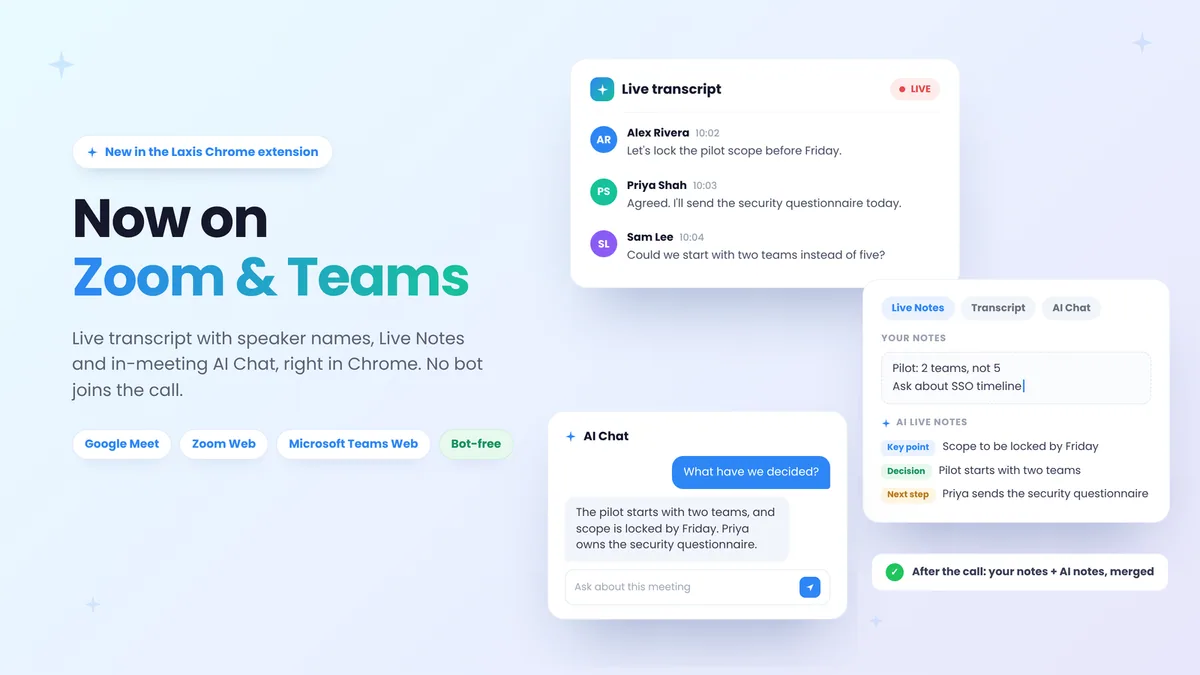
This is where the Laxis AI meeting assistant fits for many people. On a laptop, Laxis listens to Zoom, Teams, Google Meet and Webex through your computer's own audio, so it doesn't depend on the host switching captions on. On Premium, floating captions sit large and always on top of any app, even a full-screen meeting, with speaker names and your choice of font, color, size and background darkness. Afterwards you get a summary, action items and a searchable transcript, and AI Chat (also Premium) answers "what did Priya say about the deadline?" A personal dictionary helps with names and jargon. It's still automatic speech recognition, with the same kinds of mistakes captions make. Basic is free with 300 minutes a month shared with dictation; it isn't HIPAA compliant.
Asking for what you need at work
This is general information, not legal advice. In the US, the Americans with Disabilities Act requires employers to provide reasonable accommodations unless they cause undue hardship. The EEOC's guidance lists examples including meeting platforms' captioning features, automated captioning software, CART, sign language interpreters, assistive listening devices, and note-taking help for people using CART or interpreters. Your preference should get primary consideration, though where more than one option works, your employer can choose. The Job Accommodation Network offers free guidance to both sides.
In the UK, employers must make reasonable adjustments. In England, Scotland and Wales, Access to Work grants can help pay for support workers such as BSL interpreters, specialist equipment and software, and communication support at job interviews, though not for adjustments the employer is legally required to make; Northern Ireland runs its own scheme.
A request that tends to get a yes
Be specific: captions on by default for team meetings; agenda and slides 24 hours ahead; one speaker at a time, with names in large calls; CART booked for all-hands and training; a headset for anyone joining from a laptop. Concrete requests are easier to approve than "better accessibility."
If you're exploring speech recognition for writing rather than following speech, our guide to dictation software for accessibility covers that side.
Follow the meeting, then read it back. Live transcripts in the room and on Zoom, Teams, Google Meet and Webex, large floating captions on Premium, and notes when it ends. Every new account starts with a 14-day Premium trial, no credit card. Download for phone or desktop
The bottom line
Captions began as an accessibility feature and became something everyone uses in a noisy café. The people who depend on them are still their toughest testers, and they're usually right about where captions fail: bad microphones, crosstalk and rooms with none at all. Most of that is meeting habit, so the cheapest fix is often a conversation with the people you meet every week.
Frequently asked questions
How do I get live captions in a Teams meeting?
In the meeting controls, open More actions and choose Captions; older versions use Language and speech → Show live captions. In the Teams desktop app for Windows or Mac you can then open Caption settings and Caption styles to make the text bigger, change its color, show more lines or move it. Built-in captions need no add-on license, while translated captions are licensed separately through Teams Premium or Microsoft 365 Copilot.
Can I make Zoom captions bigger?
Yes, in the Zoom desktop app click the arrow next to Show captions (or the gear icon on the captions), choose Caption settings and move the Font size slider. You can also change caption color, font and position, or pop captions out into a box you can resize. Turning on Always show captions in meetings and webinars under Settings, Accessibility displays them whenever the host allows captions.
What app gives live captions for in-person conversations?
Your phone already has one: Live Captions on iPhone 11 or later can caption the microphone, and Android offers Live Transcribe. They are free and quick but keep little or no record and do not know who is speaking. For work meetings, the Laxis app records the conversation, shows a live transcript, lets you name speakers and writes notes afterwards, with 300 free minutes a month.
What is CART captioning and when should I ask for it?
CART, or communication access real-time translation, is live captioning by a trained human captioner using stenography or a phonetic keyboard. It suits meetings where accuracy matters most, such as performance reviews, training, all-hands meetings and technical discussions full of names and jargon. Teams and Zoom both let a captioner stream text into the meeting, so book early and send names and terms ahead.
Is my employer required to provide captions?
In the US, the ADA requires employers to provide reasonable accommodations unless they cause undue hardship, and EEOC guidance lists meeting captions, automated captioning software, CART and interpreters among the options. In the UK, employers must make reasonable adjustments, and in England, Scotland and Wales, Access to Work grants can fund support workers. This is general information, not legal advice; JAN and Access to Work can help with specifics.
Do Live Captions on iPhone or Mac work in Zoom and Teams?
Yes, Live Captions on iPhone and Mac caption audio from any app, including Zoom, Teams and Google Meet, as well as speech around you through the microphone. On a Mac it needs Apple silicon, and on a phone an iPhone 11 or later. Language and region availability varies, and Apple warns that accuracy can vary, so do not rely on it in emergencies.