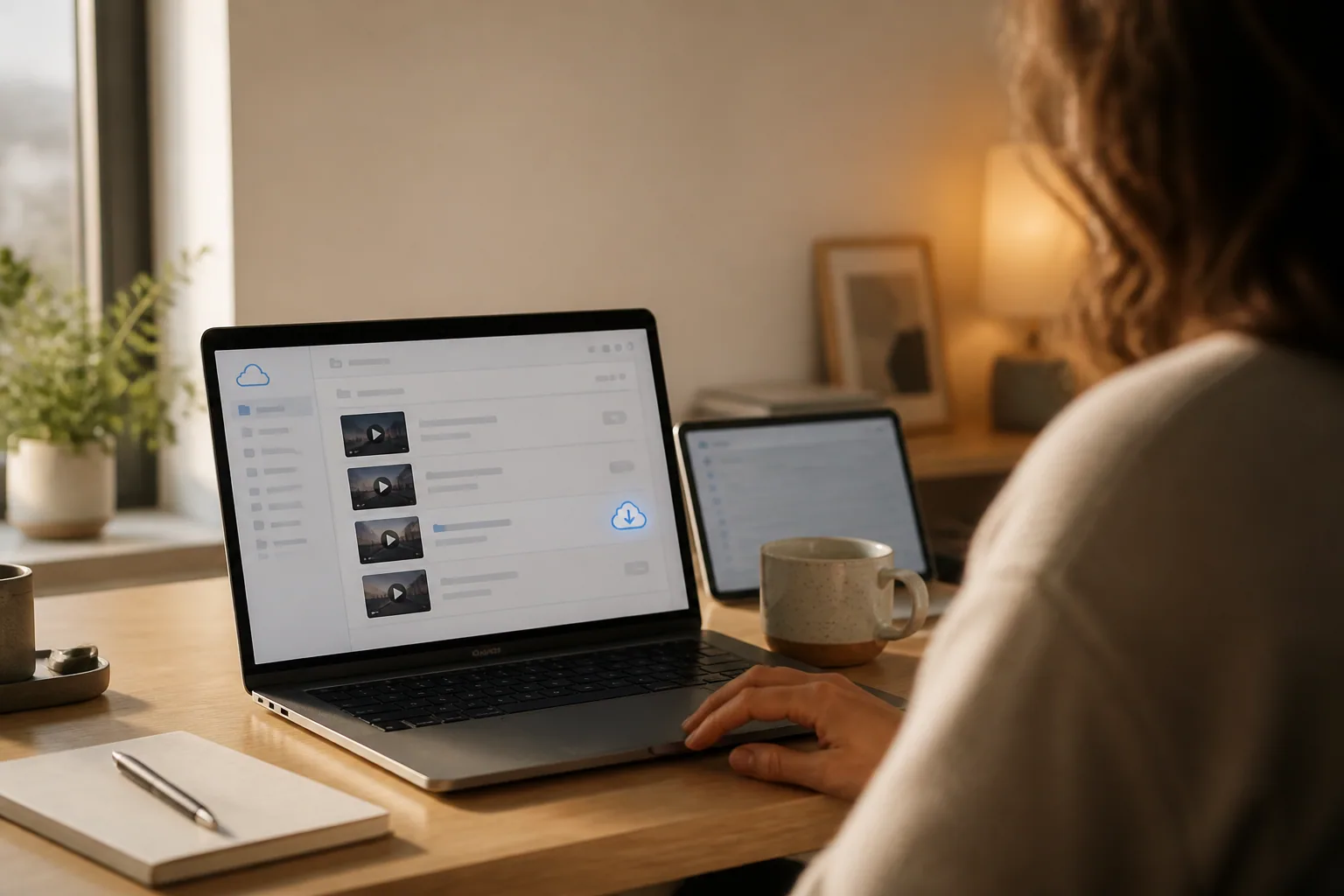
Zoom Recording Location: Where Your Files Go
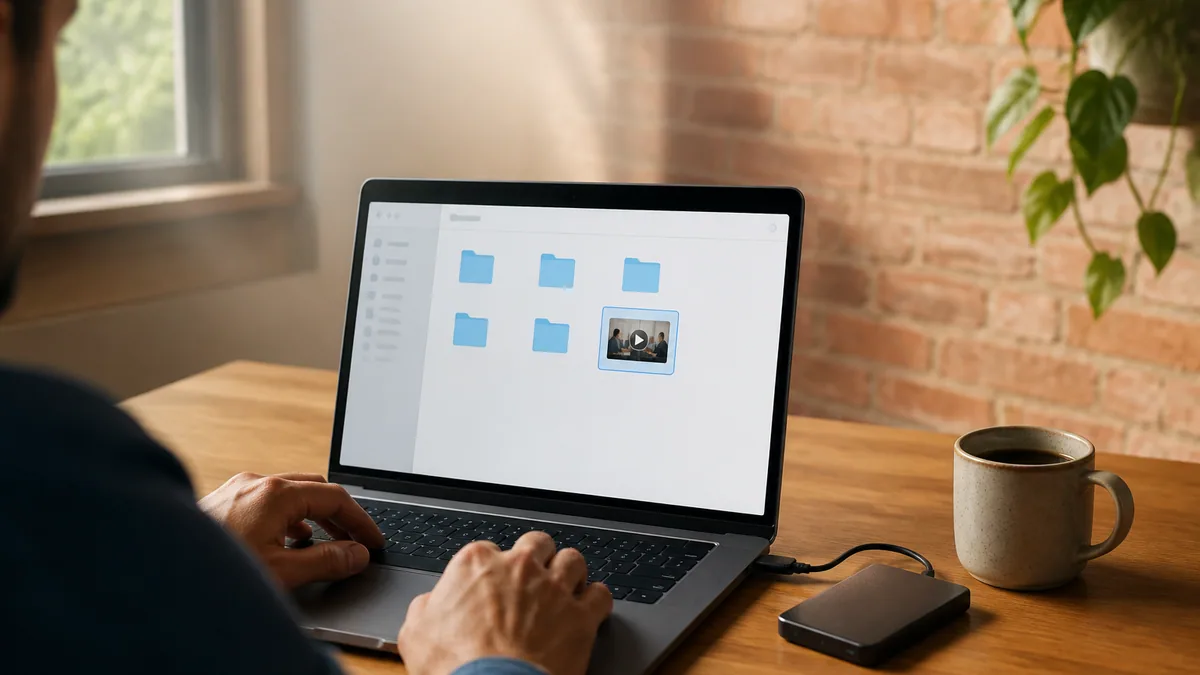
Short answer first. Your Zoom recording location depends on one choice made before the meeting started: computer or cloud. A computer recording sits on the machine that captured it, in a Zoom folder inside your Documents directory, one dated subfolder per meeting. A cloud recording isn't on your machine at all — sign in at zoom.us, open Recordings & Transcripts, and look under the Cloud recordings tab.
That covers most searches for where do Zoom recordings go. Below is what trips people up afterwards: exact paths, the conversion file that looks broken, the storage clock nobody mentioned, and what happens when the recorder leaves.
Starting a recording is a separate job, covered in our walkthrough of how to record a Zoom meeting. Telling people first is the step you can't fix later, and the rules vary by state and country; the consent section of our guide to recording a phone call applies to video calls too.
Computer recordings: the exact path on each operating system
Zoom's documentation now says computer recording where it used to say local recording, though both terms still appear in the help centre and in the app depending on your client version. Same files, same folder.
Default folder by platform
- Windows:
C:\Users\[Username]\Documents\Zoom - Mac:
/Users/[Username]/Documents/Zoom - Linux:
/home/[Username]/Documents/Zoom
Each meeting subfolder holds the MP4 video, an M4A audio-only twin, a chat.txt if chat was saved, and on Windows an M3U playlist.
- Sign in to the Zoom desktop app and click your profile picture, top right.
- Click Settings, then the Recording tab.
- Read the Storage location path under Local recording storage.
- Click Open to jump to the folder, or Change to pick a new one.
Keep the path on the machine itself. Zoom warns that a storage location not physically on your device — a mapped network drive, a mounted share — can cause problems. Background-syncing folders are the other reliable way to lose a recording: the sync client and the converter fight over a file still being written.
The conversion step that strands people
During capture Zoom isn't writing an MP4. It writes a raw file called double_click_to_convert_01.zoom (then _02, and so on), transcoded into video and audio when the meeting ends. Close the laptop mid-transcode, run out of disk, or rename those files while they're processing, and you get a folder full of things nothing will play.
The supported fix is to convert from the app, not the file: open the desktop app, find the meeting in your computer recordings list, click Convert. That list moves between client versions — older builds put it under Meetings then Recorded, newer ones under Hub, then Recordings & Transcripts, then Computer recordings — so check both.
Double-clicking the .zoom file no longer converts it in current clients, so the app's Convert button is the route to use. Community threads describe running the converter, zTscoder.exe, by hand from AppData\Roaming\Zoom\bin (sometimes bin_00) as a last resort on Windows. Error 614 means low disk space; an invalid-path warning means the storage location no longer exists.
Cloud recordings, and the two pages in the web portal
Cloud recording needs a paid licence, and the file goes to Zoom's servers rather than yours. Licensed users open Recordings & Transcripts from the portal's navigation menu and pick the Cloud recordings tab. Owners and admins go to Account Management then Recording and Transcript Management for everything on the account. Both search by meeting ID, topic and date — and by text inside the audio transcript, the fastest way to find a call you can't name.
One quirk catches teams out: a recording started by a co-host appears in the host's list, not theirs. And nothing shows up until processing finishes.
| Computer recording | Cloud recording | |
|---|---|---|
| Where it saves | The Zoom folder in Documents, on that machine | Zoom's cloud, via the web portal |
| Retention | Until you delete it; disk space is the only limit | Indefinite unless an auto-delete policy is on |
| Who can access it | Anyone with access to that computer, or to a copy of the file | Host, admins, anyone given a link or named permission |
| How to download | Already a file — copy it out | Open it in the portal, click Download |
| If deleted | Your operating system's recycle bin | Zoom's Trash tab for 30 days, if trash is enabled |
When it isn't where you left it
- Confirm which kind it was. Plenty of "missing" computer recordings went to the cloud, and the reverse. The portal's Computer recordings tab lists topic, meeting ID, date, computer name and file path.
- Search the transcript, not the title. If transcription was on, searching a phrase someone said beats guessing the meeting name.
- Check the trash. Deleted cloud recordings sit in the Trash tab for 30 days. No Trash tab means an admin turned the feature off, and deletions are permanent with no recovery.
- Check it ever started. An unstarted recording is more common than a lost one, especially where host control changed hands.
Storage limits, auto-deletion, and the 30-day trash window
Zoom includes cloud storage per licensed user and pools it across the account: 10 GB each on Pro, Pro Plus and Business, 15 GB on Business Plus, unlimited on Enterprise. Ten Business licences means 100 GB shared, not 10 GB apiece. Zoom estimates about 20 MB an hour for screen share and 200 MB for video, so an allocation drains faster than it sounds.
Hit the ceiling and the billing admin gets an email at 80% and again at the limit. A running recording finishes; no new ones start until space is freed.
Auto-deletion is worth checking today rather than later. It's off by default, but an admin can delete cloud recordings a set number of days after creation and lock the setting. The job runs once daily, recordings get a one-day grace period, and the management page shows an Auto delete in column. Individual recordings can be exempted from their own menu.
Anything deleted — by you or by that policy — lands in the Trash tab, recoverable for 30 days, then permanently removed within 24 hours. Files in the trash stop counting against your quota immediately.
Decouple the notes from the video. What you want in six months is rarely the footage. It's the decision and who agreed to do what.
An AI meeting assistant keeps its own searchable transcript, summary and action list independently of your Zoom account, so a recording ageing out doesn't take the record with it. Laxis does this across Zoom, Google Meet and Teams in 100+ languages. The free plan covers 300 minutes a month and keeps conversations for 30 days; Premium keeps them with no time limit.
Downloading and sharing without losing control of the link
Downloading is two clicks: open the recording in the portal, click Download, confirm. Sharing is where the settings matter. Share gives a Who can view control running from anyone with the link, through signed-in users on your account or a named domain, down to specific people or nobody.
Under More settings you can put an expiry date on the link, allow or block downloads, show or hide the transcript, require a passcode, or make viewers register first. What reliably breaks a link you've already sent is an expiry date passing, sharing being switched off or a changed passcode — worth knowing before you tidy up settings on something a customer already has.
For the transcript itself, our guide to Zoom transcription covers switching it on and why it never appears retroactively. If your org runs both platforms, the Microsoft equivalent is mapped in how to download a Teams recording.
What happens when the person who recorded it leaves
This is the failure with the worst consequences and the least warning. Delete a user account without selecting the option to transfer their cloud recordings and those recordings are permanently deleted. They never reach the trash. No 30-day window.
Transferring during deletion hands everything to another licensed user intact. Deactivating rather than deleting generally leaves the files in place. If the account drops to a free Basic plan, cloud recordings are kept for 30 days and then permanently deleted — a softer landing, the same deadline.
The question to settle before the next call
Almost every lost Zoom recording traces back to a decision nobody made deliberately: computer or cloud, whose account, and how long it must survive. Those three answers determine everything on this page, and agreeing them takes fifteen seconds.
Pick a default and write it down somewhere other than a Slack thread. The alternative is working it out during the week you need the file.
Frequently asked questions
Where is the default Zoom recording location?
Zoom saves computer recordings to a Zoom folder inside your user Documents directory on Windows, Mac and Linux, with one dated subfolder per meeting. Cloud recordings are not on your machine at all - they sit in your Zoom account, reachable from the Recordings and Transcripts page in the web portal.
How do I change where Zoom saves recordings?
Open the Zoom desktop app, click your profile picture, choose Settings, then the Recording tab. Under Local recording storage you will find the Storage location path, with Open and Change beside it. Pick a folder on the device itself - network drives and synced paths cause failed recordings.
What is the double_click_to_convert file in my Zoom folder?
That is the raw capture Zoom writes while recording, before it becomes a playable MP4. Conversion normally runs the moment the meeting ends. If it did not, open the desktop app, find the meeting in your computer recordings list and click Convert. Renaming those files mid-conversion corrupts them.
How long does Zoom keep cloud recordings?
Indefinitely by default - Zoom does not expire cloud recordings on a fixed schedule the way some platforms do. An admin or a licensed user can switch on a policy that deletes them after a set number of days. Check the Auto delete in column to see whether a clock is running.
Can I recover a deleted Zoom cloud recording?
Yes, within 30 days, as long as your account has the trash feature enabled. In the Zoom web portal, open Recordings and Transcripts and pick the Trash tab. After 30 days files are permanently removed within 24 hours. Deleting from the trash yourself cannot be undone.
What happens to Zoom recordings when someone leaves the company?
It depends entirely on how the admin removes the account. Deleting a user without choosing the option to transfer their cloud recordings destroys those files permanently, bypassing the trash. Transferring them to another licensed user first keeps everything. Ask before the offboarding ticket closes, not after.