How to Dictate on Apple Watch (and Fix Dictation Failed)
Here's how to dictate on Apple Watch: tap any text field, check that the small button in the bottom-right corner shows a microphone, and start talking. Words appear as you speak. Tap Done, then Send or save, and you're finished. A reply in Messages, a new note, a search box inside an app: it all works the same way.
When it doesn't work, the watch tells you in one of three ways: the microphone isn't offered, a message says dictation is disabled, or the watch listens and then reports that dictation failed. Each points to a short list of causes, most of them quick to rule out. Steps first, then where dictation works, how languages decide what's possible, and the fixes in the order worth trying.
Dictate on Apple Watch in five steps
- Open a text field. Start a reply in Messages, tap the New Note button in Notes, or tap a search or text box in almost any app.
- Check the input button. The button at the bottom right shows which method the watch will use: a microphone for dictation, a scribbled letter for Scribble, or a keyboard. If it isn't the microphone, tap it and choose the microphone.
- Speak. Lift your wrist a little closer to your mouth and talk at your normal pace. Text fills in as you go.
- Correct anything it misheard. Use the Digital Crown to shift the cursor. Tap a wrong word and say the right one, and the watch swaps it. Tap the screen twice to select everything, or tap Erase.
- Finish. Tap Done, then Send in Messages. A note made in the Notes app syncs to your iPhone and other devices through iCloud.
Punctuation and emoji can be spoken in supported languages, so "running late comma save me a seat" comes out with its comma. Our full list of spoken punctuation commands covers the rest, across Apple and other platforms.
Prefer a bigger screen halfway through? When you begin entering text on the watch and your iPhone is nearby, an Apple Watch Keyboard Input notification shows up on the phone. Open it and finish the message there.
Wrist tip: keep watch dictation to a sentence or two per message, and turn your back to the wind outdoors. The watch's microphone sits out in the open, so gusts and traffic noise reach it directly.
Where dictation works on the watch
Dictation isn't an app; it's one of the ways the watch accepts text, so anywhere it asks you to type, you can usually talk instead.
- Messages. For a new conversation, open Messages, tap New Message, tap Add Contact (or tap the microphone there to say a name or number), then tap Create Message and speak. To reply, open the conversation and tap the text field.
- Notes. Since watchOS 26 there's a Notes app on the wrist. Tap New Note and dictate; iCloud keeps the note in step with your other devices. Apple says editing an existing note still happens on iPhone, iPad or Mac.
- Siri. Activate Siri and say "Tell Priya I'm on the train," "Remind me to book the dentist at 5 p.m." or "Start a new note." Away from iPhone, Siri needs Wi-Fi or cellular, Apple says.
- Mail, Reminders and third-party apps. Any text field uses the same three input methods, so the steps above carry over.
On current watchOS, dictation sits beside two alternatives. Scribble lets you draw letters with a fingertip, but Apple lists it for only 20 language variants. The onscreen keyboard, with QuickPath swiping, isn't available in every language and isn't offered on Apple Watch SE 3 at all. When the microphone disappears, those are your fallbacks.
If what you want is the audio itself, a lecture or a meeting rather than a message, see our guide to the ways to record audio on Apple Watch.
Languages decide what's possible
Apple Watch takes its language from your iPhone. To give the watch a different one, open the Watch app on iPhone, go to My Watch, then General, then Language & Region, and choose Custom. If you've set up more than one language, you can switch while writing: swipe up from the bottom of the text screen and pick another. Apple documents that gesture for keyboards; people in Apple's Community forum use the same menu to bring the microphone back in a supported language. Siri's language is separate and changes on iPhone, in Siri settings.
Not every language can be dictated, and fewer still can be processed on device. Here is what Apple's watchOS 27 feature-availability page lists:
| Input method | Apple's watchOS 27 list | What it means for you |
|---|---|---|
| Dictation | 63 language and region variants, from Arabic (Kuwait) to Vietnamese | If your watch language isn't on it, expect no microphone option |
| On-device dictation | A shorter list: variants of Cantonese, English, French, German, Japanese, Mandarin Chinese and Spanish | Apple can process these on device rather than on its servers, on models that support it |
| Scribble | 20 variants of Cantonese, English, French, German, Italian, Mandarin and Spanish | A fallback for short replies when dictation isn't offered |
For any language outside the on-device list, Apple's privacy page explains that dictated speech is sent to Apple's servers to be processed, and Apple doesn't keep the audio unless you've opted in to Improve Siri & Dictation. This is also why a dropped connection can end in "dictation failed" instead of text. Apple's watch guide doesn't say how on-device languages behave with no connection at all, so for anything you can't afford to lose, a voice memo is the safer capture.
Dictation failed, not available or disabled: fixes, in order
Apple's closest troubleshooting page is its checklist for when Siri isn't working on Apple Watch, which covers the overlap (connection, settings, microphone, restart), and forum threads fill in the rest. Test after each step.
- Match the message to the cause. "Disabled" points to a switch or a restriction. No microphone among the input choices points to the language or the input method. "Failed" after you've spoken points to the connection or Apple's service.
- Pick the microphone again. Tap the input button at the bottom right of the text field and choose dictation. On Apple's forum, a top contributor says the watch remembers the method you used last, so one Scribble reply can hide the microphone next time.
- Turn dictation on. On the watch, open Settings and look under General for Dictation, then switch it on; recent guides put it there, though Apple's watch guide doesn't spell out the path.
- Look for a restriction. Screen Time can switch Siri and Dictation off entirely. On iPhone, open Settings > Screen Time > Content & Privacy Restrictions > Allowed Apps & Features and make sure both are allowed. On a device managed through Family Sharing, a parent may control this setting.
- Try a supported language. If your watch language isn't on Apple's dictation list, the microphone won't appear however many times you restart. Switch the watch language (or add a second one) in the Watch app.
- Check the connection. A red Disconnected icon or a red X on the watch face or in Control Center means no link to iPhone. Open Control Center with the side button and tap the Ping iPhone button; if the phone pings, they're connected. On iPhone, keep Wi-Fi and Bluetooth switched on. Away from your phone, the watch can use Wi-Fi networks iPhone has joined before, though not public ones that need a login.
- Unblock the microphone. Remove a case or film that covers the watch, then record a few seconds in Voice Memos on the watch and play it back. If your own voice sounds muffled there, dictation will struggle too.
- Restart both devices. Press and hold the side button until the sliders appear, tap the Power button, drag Power Off, then hold the side button to turn it back on. You can't restart a watch while it's charging. Restart your iPhone too. If the watch won't respond, force it: hold the side button and the Digital Crown together for at least 10 seconds.
- Update watchOS. In the Watch app on iPhone, go to My Watch, then General, then Software Update. Or on the watch itself, go to Settings, General, Software Update.
- Then ask Apple Support. If nothing above helps, a hardware check or a reset may be next, and that's a conversation worth having before you erase anything.
Before you unpair: Apple's guide is clear that unpairing a watch from iPhone erases its contents. Let voice memos and anything else that lives only on the watch reach your phone first. One person who unpaired to fix the missing-microphone problem described below reported that it made no difference.
If the microphone vanished after an update
After the watchOS 26 release in September 2025, people in Apple's Community forum reported the microphone missing from Messages on Series 9, 10 and 11 and on Ultra models, while Scribble and the keyboard still worked; one said Apple Support called it a known issue. What helped some of them was language order: making English (US) the first keyboard on iPhone, or picking a dictation-supported language from the swipe-up menu before tapping the input button. These are user reports, not Apple guidance. If you see the same on watchOS 27, install the latest update and tell Apple through its Apple Watch feedback form.
If most of what you dictate on the wrist is notes to yourself, install Laxis on your iPhone and put it on the watch too; Jot turns that into a tap on the pencil and a sentence.
For quick thoughts: Jot on Laxis for Apple Watch
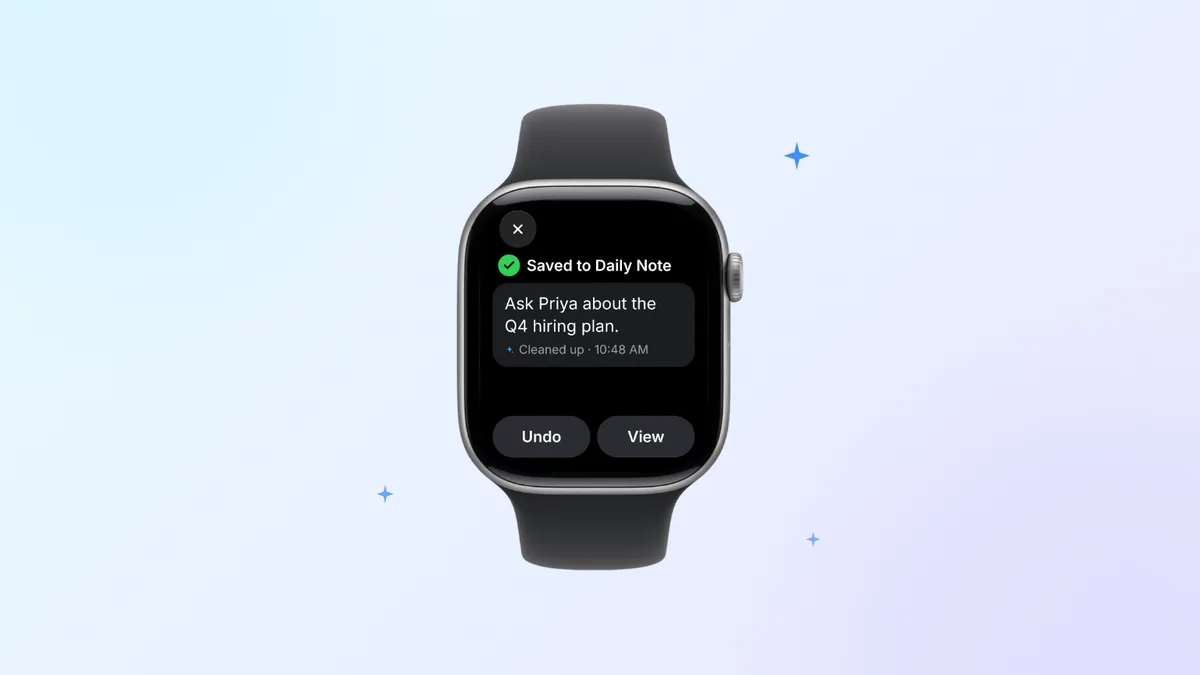
Dictating into Notes works, but what lands there is raw speech, and you can't tidy it on the watch afterwards. Laxis for Apple Watch has a feature built for that exact moment. Open Laxis on the watch, tap the pencil to start a Jot, and say the thought. Laxis cleans up the wording and files it under today's Daily Note. There's no field to hunt for and no raw transcript to clean up later. Jot also works when you're offline, which is exactly when Apple's server-based dictation languages give up with "dictation failed".
The same app does more than notes. Tap once and the watch's own microphone records a meeting or conversation, even when your iPhone stays at your desk; after the recording uploads, Laxis transcribes it with speakers, drafts a summary and lists the action items. On the wrist you can check Tasks, grouped by meeting, and add one by voice, and Ask Laxis answers questions across your notes (that one uses AI Chat, which is Premium). Processing happens in the cloud.
To set it up, install the free Laxis app on iPhone (it's listed on the App Store as Laxis: AI Notes & Dictation), sign in, and add it to the watch from the Watch app. It needs watchOS 10 or later, and usage follows your Laxis plan; on free Basic that means 300 minutes a month across recordings and dictation combined. The page on Laxis for Apple Watch shows what each screen does.
If you'd rather start with the announcement, what's new in Laxis for Apple Watch walks through every feature. One rule applies whatever you use: when you record people rather than your own notes, tell them first. Depending on where you are, recording a conversation can require everyone's consent; our guide to call recording consent laws sets out the rules by state. It isn't legal advice, and neither is this.
Longer drafts belong on your iPhone
A watch is a good place for fifteen words and a poor one for a hundred and fifty: reading back in fragments and fixing a sentence one tapped word at a time wears thin fast. For an email or anything with paragraphs, switch to the phone.
Apple's own dictation on iPhone is the free option (our guide to Apple Dictation across your devices covers setup and privacy), though it transcribes rather than tidies, so false starts and self-corrections stay in. The Laxis Voice Keyboard is the alternative when you want cleaner text: add it as a keyboard on iPhone and it works in any app. Polish, the default mode, removes fillers, resolves self-corrections and formats spoken lists; Transcribe gives you every word as spoken. Both are on every plan, while Translate and Agent modes are Premium. Because speech is processed in the cloud, iOS asks you to allow Full Access; Laxis sends audio only while you dictate, and your keystrokes go nowhere, with one exception: in Agent mode, the text near your cursor is sent along with what you asked for.
If dictation on the phone is what's broken, our iPhone dictation troubleshooting guide goes through each fix. If the words arrive but come out wrong, that's accuracy rather than settings, and why voice to text gets words wrong explains microphones, names and accents. Shopping around? Start with our roundup of iPhone dictation apps.
Catch the thought on your wrist. Finish it on your phone. Get Laxis free on the App Store for iPhone, then install it on Apple Watch through the Watch app: Jot quick notes, record meetings, and dictate longer drafts with the Voice Keyboard. 14-day Premium trial, no credit card. Jot it down on your wrist
The bottom line
Watch dictation is at its best when nobody notices it: a reply at a crosswalk, a reminder in a queue, the sentence you'd lose before reaching your phone. When it breaks, the cause is usually a setting, a language or a connection, not the hardware. Fix those once, and the wrist becomes the quickest place to start a thought, if not the place to finish it.
Frequently asked questions
How do I enable dictation on Apple Watch?
Open the Settings app on Apple Watch and look under General for a Dictation switch; third-party guides put it there, though Apple's watch guide doesn't list the path. Then open any text field and tap the input button in the bottom-right corner to choose the microphone. If the switch is missing or the watch says dictation is disabled, check for a Siri and Dictation restriction in Screen Time on the paired iPhone.
Why does my Apple Watch say dictation failed?
Dictation failed can mean the watch lost its connection partway through, because many dictation languages are processed on Apple's servers. Check Control Center for the red disconnected icon, bring your iPhone closer or join a known Wi-Fi network, and try again. If it keeps failing, restart the watch and iPhone, then install the latest watchOS update.
Why is dictation not available on my Apple Watch?
Dictation is not available on Apple Watch when the watch language is not one Apple supports for dictation, or when the text field is set to Scribble or the keyboard. Tap the button in the bottom-right corner and choose the microphone if it is listed. If it is not, compare your language with Apple's watchOS feature availability list.
How do I change the dictation language on Apple Watch?
Apple Watch uses the language set for it on iPhone, so open the Watch app, tap My Watch, then General, then Language and Region, and choose Custom to pick one. With more than one language set up, swipe up from the bottom of the text screen to switch while writing. Siri's language is changed separately, in Siri settings on iPhone.
Does Apple Watch dictation work without iPhone?
Yes, Apple Watch dictation can work without iPhone nearby when the watch is on a Wi-Fi network your iPhone has joined before, or on cellular. With no connection at all, languages missing from Apple's on-device list for watchOS 27 cannot be transcribed, because they rely on Apple's servers. For anything you must keep, record a voice memo, which works without a connection, or use Jot in Laxis for Apple Watch, which works offline too.
Can you dictate notes on Apple Watch?
Yes, on watchOS 26 and later the Notes app on Apple Watch lets you create a note and dictate it, and iCloud syncs it to your iPhone, iPad and Mac. Editing an existing note still happens on those devices. Laxis for Apple Watch offers another route: tap the pencil for Jot, speak, and Laxis saves a tidied version to today's Daily Note.