Laxis for Apple Watch: The AI Note Taker on Your Wrist
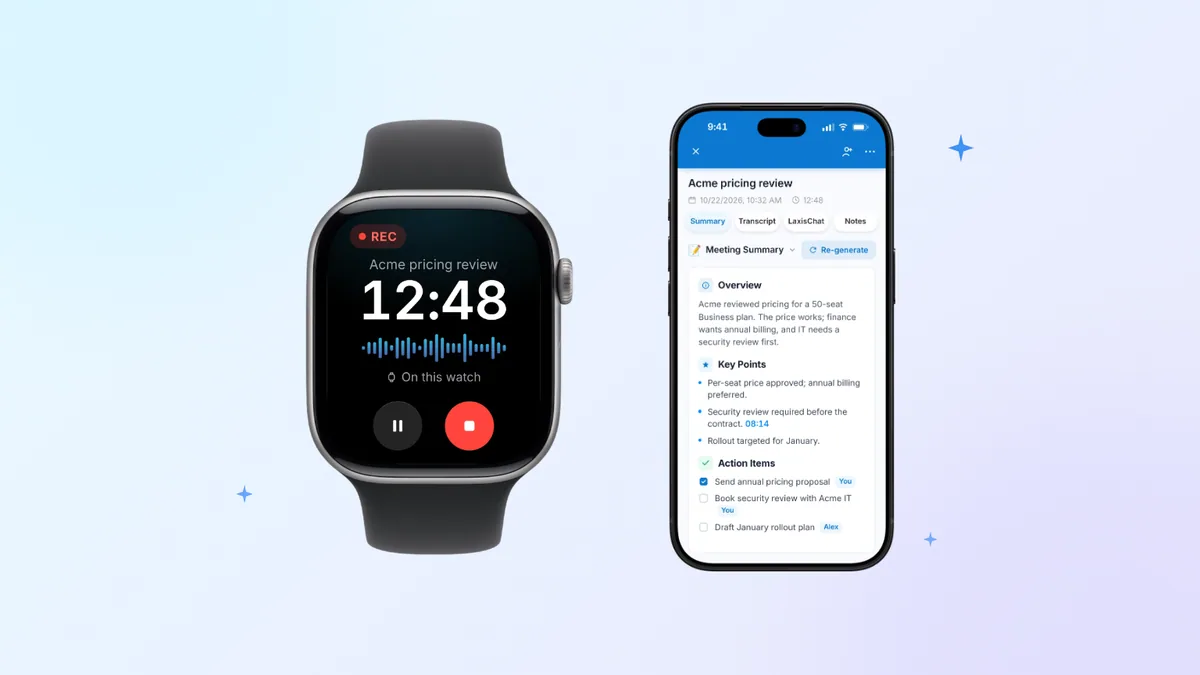
Laxis for Apple Watch is now available, and it turns the watch on your wrist into an AI note taker for conversations that happen away from your laptop. Tap once to record with the watch's built-in microphone. When you stop, Laxis transcribes what was said, writes the notes, pulls out the action items and files everything in the same Laxis workspace as your Zoom, Google Meet and Teams calls.
It comes with the free Laxis iPhone app and runs on any Apple Watch with watchOS 10 or later. Here's what it does, how to set it up, what it costs, and the one thing to do every time before you tap record.
Built for conversations away from your desk
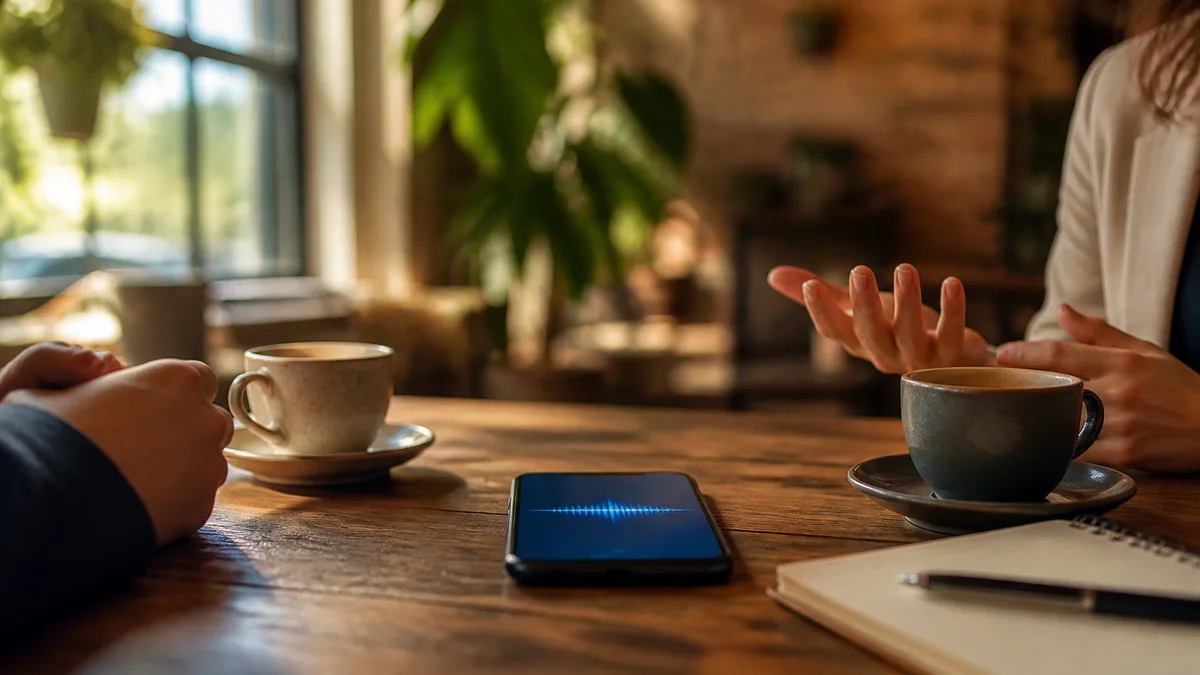
Plenty of conversations worth keeping don't happen in a meeting room with a laptop open. The real decision gets made by the elevator after the meeting, on a site walk, or over lunch with a client. Your phone is in a bag or face down on the table, and by the time you've dug it out and found the record button, the useful part is over.
Laxis for Apple Watch is the AI recorder for those moments. It records on your wrist, then turns the conversation into a transcript with speakers, a summary and a list of action items you can read on the watch, on iPhone or at your desk. There's no second account: recordings from the watch sit next to your online meetings, which Laxis already covers through its desktop app and its Chrome extension for Zoom and Teams.
None of this requires a watch. Laxis already records on iPhone, Android and the Mac and Windows desktop apps (see our roundup of mobile AI note takers); the watch is just the quickest way to start when your phone isn't in your hand.
How to get Laxis on Apple Watch
Setup happens on your iPhone. There's nothing to configure on the watch itself.
- Install Laxis on iPhone. Download Laxis: AI Notes & Dictation from the App Store. It's free and needs iOS 16 or later.
- Sign in, or create an account. A new account gets 14 days of Premium automatically, without entering a card.
- Add it to your watch. By default, Apple Watch installs the watch versions of your iPhone apps by itself, so Laxis may already be there. If it isn't, open the Watch app on iPhone, tap My Watch, then Apps, scroll to Available Apps and tap Install next to Laxis.
- Open it on your wrist. Press the Digital Crown, find Laxis among your apps and tap it. Signing in once on iPhone is enough; there's no second sign-in on the watch.
Can't see the Install button? Labels in the Watch app shift between watchOS versions, so look for Laxis anywhere in the app list on the My Watch tab.
What you can do from your wrist
Record in one tap
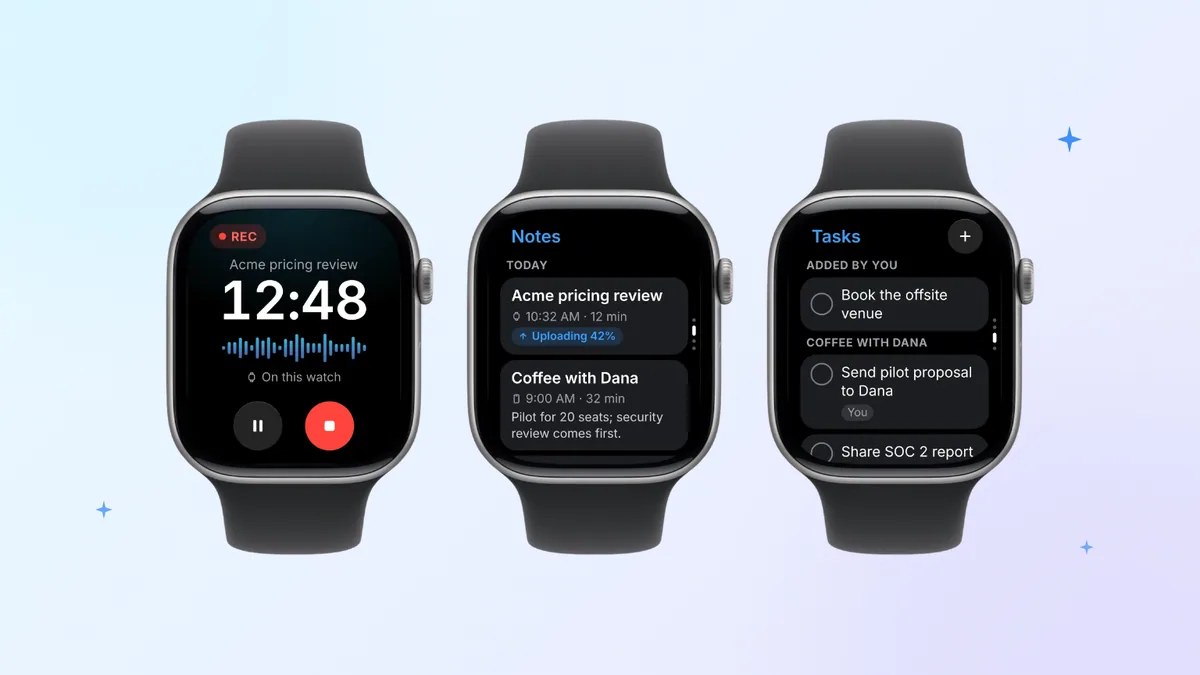
Open Laxis and tap record, or start straight from your watch face: add the Laxis complication and recording is one tap from the time, with your next meeting in view. On Apple Watch Series 9 or later, Apple Watch Ultra 2 or later and Apple Watch SE 3, running watchOS 11 or later, Double Tap starts a recording too, no screen touch needed. The watch's built-in microphone does the listening, and a tap on your wrist confirms that recording has started, so you don't have to squint at the screen to check. Then lower your arm and carry on with the conversation. Laxis keeps recording with the screen dimmed, and pause or stop is one tap away when you raise it again.
Mark the moment that matters
Heard a figure you'll need later? Tap the flag while you record. Each mark turns into a jump point in the transcript, so finding that moment afterwards takes seconds, not a scrub through 40 minutes of audio.
Leave your iPhone at your desk
This is the part that matters most for in-person work. Laxis records on the watch even when your iPhone isn't with you, say with the phone charging at your desk while you're in a meeting room two floors up. The recording is kept on the watch and syncs on its own. When your iPhone is nearby, it uploads through the phone, and the watch shows "Uploading via iPhone" while it does. When the phone is out of range, the watch sends it over Wi-Fi or, on a cellular model, its own connection, so the notes can be waiting before you're back at your desk.
Start from your next meeting
The watch shows your next meeting. Tap it to start recording, and the notes are filed under that meeting when they're ready. No renaming "New Recording 14" afterwards, and no guessing which file was the budget review.
Use the watch as a remote
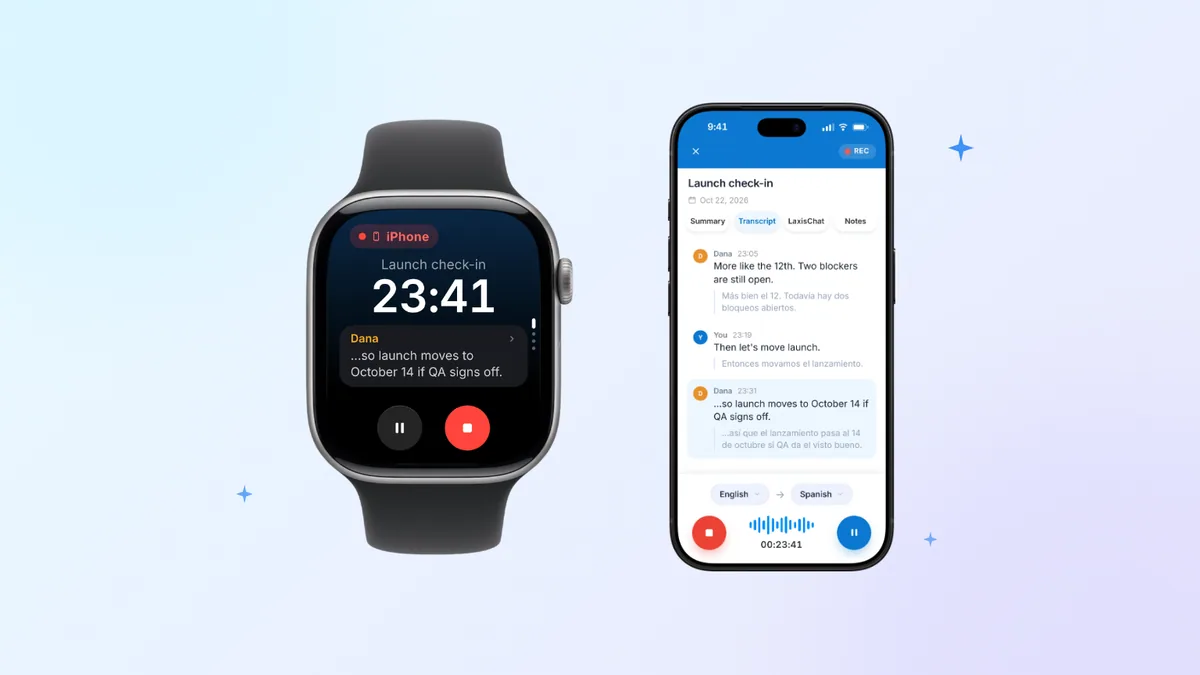
Sometimes the phone is the better microphone, lying flat in the middle of the table. When a Laxis recording is running on iPhone, the watch shows the timer and the live transcript, with pause and stop. You can check that it's picking up the room without reaching across for your phone.
Notes, Tasks, Ask Laxis and Jot
- Notes. Scroll your meetings with a one-line summary for each, and see new recordings go from uploading to ready.
- Tasks. Action items from every meeting, grouped by meeting. Tap one to complete it, or add a new one by voice. If your team's follow-ups tend to stall, our guide to writing action items helps.
- Ask Laxis. Ask a question across all your notes, such as "What did we agree with the vendor on Tuesday?", and get a short answer on the wrist, to read or to have read aloud. It uses AI Chat, which is part of Premium.
- Jot. Tap the pencil and say what's on your mind. Laxis tidies it up and saves it to today's Daily Note, and Jot works even when you're offline.
Screenshots of each of these screens live on the Laxis for Apple Watch product page.
What happens after you tap stop
Recordings made on the watch are transcribed after they upload, not live on the wrist. Once a recording reaches Laxis, it's transcribed with speakers, it gets AI notes summarizing what was discussed, and its action items go into Tasks. You get a notification when the notes are ready.
From there it's a normal Laxis meeting. Open it on iPhone, in the Mac or Windows desktop app or on the web; search it, share it, or ask AI Chat about it (Premium) alongside your online calls in the Laxis AI meeting assistant. That's the real difference from a voice memo. A recording is a file, and files pile up unheard. A Laxis note already has the decisions and next steps pulled out, filed under the meeting they came from.
If your phone is full of recordings you'll never play back, get Laxis on iPhone and add it to your watch.
To be fair to Apple, Voice Memos is a good recorder, and if audio is all you need, it's enough. Here's everything Voice Memos on iPhone can do, and our guide to recording audio on Apple Watch covers the built-in options on the wrist.
Own Apple Watch Series 12 or Apple Watch Ultra 4? Siri Recap is a different idea. Apple says it doesn't record or store audio and writes high-level summaries rather than a transcript, and as of October 28, 2026 it's due in beta later this year, starting with English. Our Siri Recap explainer compares the two.
Plans and requirements
Laxis for Apple Watch is free to install and runs on your regular Laxis plan, so the minutes and limits match every other Laxis app.
| Basic | Premium | Business | |
|---|---|---|---|
| Price | Free | $15.99/mo, or $9.99/mo billed yearly | $29.99/mo, or $19.99/mo billed yearly |
| Minutes a month | 300 | 2,000 | Unlimited |
| Longest single recording | 45 minutes | 2 hours | 4 hours |
| History | 30 days (older notes archived, not deleted) | Unlimited | Unlimited |
| Ask Laxis on the watch | No | Yes | Yes |
Before you rely on it: minutes come from one shared pool, so meetings, Voice Keyboard dictation and live translation all draw on the same monthly total. The watch taps your wrist when 10 minutes and again when 5 minutes are left, and a recording that hits your plan's length limit saves automatically; start a new one to carry on. Transcription runs in the cloud, so notes appear once the recording has synced. Subscriptions bought in the Laxis iPhone app are billed by Apple in local currency, so amounts can differ slightly. Full details are on the Laxis pricing page.
What you need:
- An Apple Watch on watchOS 10 or later. Going by Apple's compatibility chart, that's Apple Watch Series 4 and newer, every Apple Watch SE and every Apple Watch Ultra, as long as the software is up to date. Starting a recording with Double Tap needs Apple Watch Series 9 or later, Apple Watch Ultra 2 or later or Apple Watch SE 3, on watchOS 11 or later.
- An iPhone with the Laxis app, to install the watch app and sign in. The iPhone app runs on iOS 16 or later, but a watch on watchOS 10 or later has to be paired with an iPhone on iOS 17 or later.
- A Laxis account. Basic costs nothing.
Recording responsibly
A watch doesn't look like a recorder, which is exactly why you should say so when it is one. Recording people can require their consent depending on where you are, and in some places everyone in the conversation has to agree. One habit goes a long way: ask at the start, and don't record if anyone says no. Something like "Mind if I record this on my watch so I get the notes right?" works.
Telling people is up to you, not the app. Our guide to recording phone calls lists the US states that require everyone's consent and notes how Canada and the EU differ. That guide and this post are general information, not legal advice. Laxis also isn't HIPAA compliant and doesn't sign BAAs, so don't use it for conversations that require one.
Put Laxis on your wrist. Install Laxis on iPhone (it's free on the App Store), then add it to Apple Watch from the Watch app. 14-day Premium trial, no credit card. Set up Laxis on your watch
Frequently asked questions
Does Laxis work on Apple Watch?
Yes. Laxis for Apple Watch comes with the free Laxis iPhone app and works on any Apple Watch running watchOS 10 or later. Tap once to record a conversation with the watch's built-in microphone, and Laxis transcribes it, writes AI notes and pulls out action items you can read on your wrist, on iPhone or in the desktop and web apps.
Can Laxis record on Apple Watch without my iPhone nearby?
Yes. The watch's own microphone does the recording even when your iPhone is somewhere else, and the recording is kept on the watch until it syncs on its own, through your iPhone when it's nearby or over Wi-Fi or cellular when it isn't. Laxis then transcribes it. You only need the Laxis iPhone app to install the watch app and sign in.
How do I record a meeting on Apple Watch with Laxis?
Open Laxis on the watch and tap record, tap your next meeting so the notes are filed under it, or start from the Laxis complication on your watch face. A tap on your wrist confirms that recording has started. Lower your wrist, keep talking and tap stop when you're done. Laxis then transcribes the conversation and notifies you when the notes and action items are ready.
Is Laxis for Apple Watch free?
Yes. It's free to install with the Laxis iPhone app and runs on your Laxis plan. On the free Basic plan you get 300 minutes a month, which dictation also draws on, and recordings of up to 45 minutes. Ask Laxis on the watch relies on AI Chat, a Premium feature, and new accounts begin with a 14-day Premium trial and no credit card.
Does Laxis transcribe in real time on Apple Watch?
Not for recordings made on the watch. Laxis transcribes those after they upload and sends a notification when the notes are ready. When a Laxis recording is running on your iPhone, though, the watch shows the live transcript and a timer, with pause and stop, so you can follow along without picking up the phone.
Which Apple Watch models work with Laxis?
Any Apple Watch that runs watchOS 10 or later works with Laxis. Based on Apple's compatibility chart, that covers Apple Watch Series 4 and newer, every Apple Watch SE and every Apple Watch Ultra, as long as the software is updated. You also need the Laxis app on the paired iPhone, which for watchOS 10 or later means iOS 17 or later. Double Tap recording needs Apple Watch Series 9 or later, Apple Watch Ultra 2 or later or Apple Watch SE 3, on watchOS 11 or later.