Apple Watch Transcription: Turn Wrist Recordings Into Text
Apple Watch transcription is one of those features people assume exists until they go looking for it. The watch has a decent microphone and Voice Memos records in one tap, yet Apple's own watch guide describes recording and playback and says nothing about text. The words get made somewhere else: on iPhone, on a Mac, in Apple's upcoming Audio Intelligence features, or in an app built for meetings. Which route suits you depends on whether you need every word, a quick gist, or a record other people can use.
This guide is about getting text out of audio you've already captured. For the capture itself, we've written a separate guide on recording audio on Apple Watch, and if a memo never reached your phone, start with fixing Apple Watch memos that won't sync.
The free route: let iPhone or a Mac do the transcribing
For most people, the answer to Apple Watch voice memo transcription is already sitting on their phone. Watch recordings travel to iPhone, iPad and Mac on the same Apple Account and show up there under Watch Recordings. From there, Voice Memos does the transcribing.
On iPhone, Apple's requirements are iPhone 12 or later and one of a short list of languages: English (all variants), Spanish, Portuguese, Italian, French, German, Japanese, Korean, and Simplified and Traditional Chinese. It isn't offered in every country or region. The feature arrived with iOS 18, and Apple's guide says that when you open a recording made in iOS 17 or earlier, Voice Memos transcribes it automatically as long as it contains speech. On a Mac it takes macOS Sequoia or later and Apple silicon, and the Mac guide spells out the case that matters here: a recording "made on a device that doesn't support transcription" gets transcribed automatically when you open it, if it includes recorded speech.
We won't repeat the taps here: our iPhone guide, how to transcribe voice memos on iPhone, already covers viewing, copying and sharing a transcript step by step. Two things are worth knowing before you lean on it. Apple doesn't describe speaker labels, so expect a two-person conversation to come back as one stream of text. And search in Voice Memos matches words inside transcripts, which turns a pile of old watch memos into something you can actually dig through. With Apple Intelligence, the Mac guide adds, Writing Tools can summarize a transcript in a click.
Quick tip
A wrist mic hears whoever is closest to it best. In a meeting, rest your arm on the table on the side of the person doing most of the talking, keep cuffs and sleeves clear of the watch, and say the date and who's in the room at the start. You'll be glad of that last habit when you're searching transcripts a month from now.
Live Rewind: the last 15 seconds, as text
Apple's newest trick is aimed at a different moment: you missed what someone just said. Live Rewind, one of the Audio Intelligence features on Apple's support page for Siri Recap, turns the last 15 seconds of conversation into a short text snippet when you double-press the Digital Crown. Apple says Live Rewind is processed on device, on your Apple Watch and iPhone; the text goes to Apple's Private Cloud Compute only if you save a snippet to the Siri app or ask Siri about it. The watch also plays a chime, shows a full-display animation and lights the microphone indicator while it works. Unless you save it to the Siri app or tap Ask Siri, the snippet disappears about 30 seconds after the display dims. If it matters to you where audio gets processed, we've compared on-device and cloud transcription in detail.
The catch is timing. As of October 28, 2026, Apple's wording is that Live Rewind arrives in beta "later this year," English first, and it isn't part of watchOS 27.2, which came out on October 26. It needs Apple Watch Ultra 4 or Apple Watch Series 12, connected to iPhone 16 or later (but not iPhone 16e) running Apple Intelligence and Siri AI (Beta). Siri AI won't initially be available in the EU on watchOS, and the feature isn't for users under 13. Even once it ships, 15 seconds is a lifeline for a lost sentence, not a meeting transcript.
Siri Recap writes a summary, not a transcript
The other half of that announcement is Siri Recap, and it's easy to mistake for transcription. It isn't. Apple describes Recap as opt-in: you schedule it by time or location, or switch it on from Control Center, and it produces high-level summaries of the conversations around you. There's no transcript, no audio is recorded or stored, and nothing is attributed to a particular speaker.
The privacy design is careful. Summaries live in the Recaps tab of the Siri app, are end-to-end encrypted in iCloud and delete themselves after seven days unless you save or export them. Processing uses a Secure Exclave and Apple's Private Cloud Compute, and Apple says Recap is designed to leave out some sensitive information, such as financial data and government ID numbers, though it warns the filtering may not catch everything. Apple is also upfront that summaries may be incomplete or inaccurate, and it asks people to consider those around them. Recap shares the hardware list and the "beta later this year, English first" timing of Live Rewind.
So Recap is good at "what did we talk about at lunch?" and deliberately bad at "what exactly did the client agree to?" Our full Siri Recap explainer goes deeper on settings, availability and privacy.
If the conversation is a meeting and you need the full record (every word, who said it, what happens next), that's a job for a note taker: try Laxis free on iPhone.
Live captions on your wrist, for following along
Apple's own way to follow a conversation as text on your wrist, in real time, comes from accessibility. With Live Listen, iPhone works as a remote microphone that streams sound to AirPods or MFi hearing devices, and with Live Captions generated on iPhone, the transcription shows up on your wrist as people speak. To set it up, turn on Remote Control in Settings on iPhone under Accessibility, Audio & Visual, Live Listen; add Hearing Controls to Control Center on the watch; then tap Live Listen Captions during a session. Both devices need the same Apple Account, and the phone should sit near the sound source.
Apple notes that Live Captions isn't available in every language, country or region, that accuracy varies, and that it isn't meant for high-risk or emergency use. It's built to help you hear in the moment, and Apple's page describes captions on the screen, not a transcript you keep. We cover the wider set of tools in our guide to live captions for hearing loss.
And if what you want is your own words typed into Messages or a note, that's dictation rather than transcription: you get text, not a recording. Our guide to dictating on Apple Watch covers the wrist side, and Apple Dictation across your devices covers the rest.
Every route to text, side by side
| Route | Audio kept? | Full transcript? | Speakers? | Summary? | Devices required | Languages |
|---|---|---|---|---|---|---|
| Voice Memos, transcribed on iPhone or Mac | Yes | Yes, once the memo syncs | Not described by Apple | With Apple Intelligence Writing Tools | Any Apple Watch with Voice Memos, plus iPhone 12 or later on iOS 18 or later, or a Mac with Apple silicon on macOS Sequoia or later | English, Spanish, Portuguese, Italian, French, German, Japanese, Korean, Simplified and Traditional Chinese |
| Live Rewind | No; Apple says the audio is deleted after processing, and you can save the text snippet | No, the last 15 seconds | Not described | No | Apple Watch Ultra 4 or Apple Watch Series 12; iPhone 16 or later (not iPhone 16e); Apple Intelligence and Siri AI (Beta) | English first; beta later this year |
| Siri Recap | No; Apple says no audio is recorded or stored | No | No speaker attribution | Yes, high level, deleted after 7 days unless saved | Same as Live Rewind | English first; beta later this year |
| Live Listen with Live Captions | Not described as saved | Live captions while you listen | Not described | No | iPhone near the sound source, AirPods or MFi hearing devices, same Apple Account | Not every language or region |
| A recorder app, such as Just Press Record | Yes | Yes, made on iPhone after transfer | Not listed | Not listed | watchOS 10.6 or later; $6.99 one-time | 30+ languages, per its listing |
| Laxis for Apple Watch | Yes, uploaded to your Laxis account | Yes, after the recording uploads | Yes | Yes, AI notes and action items | Every Apple Watch model running watchOS 10 or newer, with the Laxis app installed on iPhone | No count published yet for the watch app |
We took the requirements from Apple's support pages and the App Store listings on October 28, 2026. Disclosure: Laxis is one of the options here. If you're choosing between recorder apps rather than routes, our Apple Watch voice recorder app comparison weighs them up.
Meeting transcription from your wrist, with Laxis
Apple's routes are built for personal audio, and they're good at it. A meeting needs something different: the whole conversation, who said what, and the follow-ups, somewhere your team can reach them. Laxis for Apple Watch exists for that job.
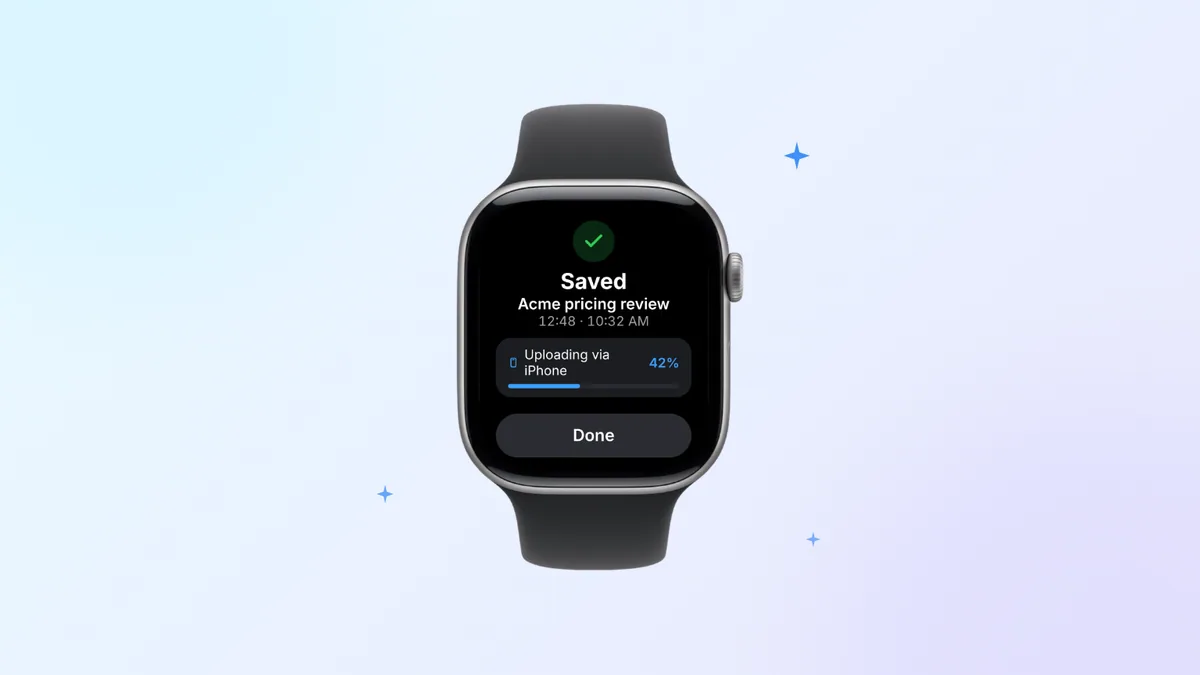
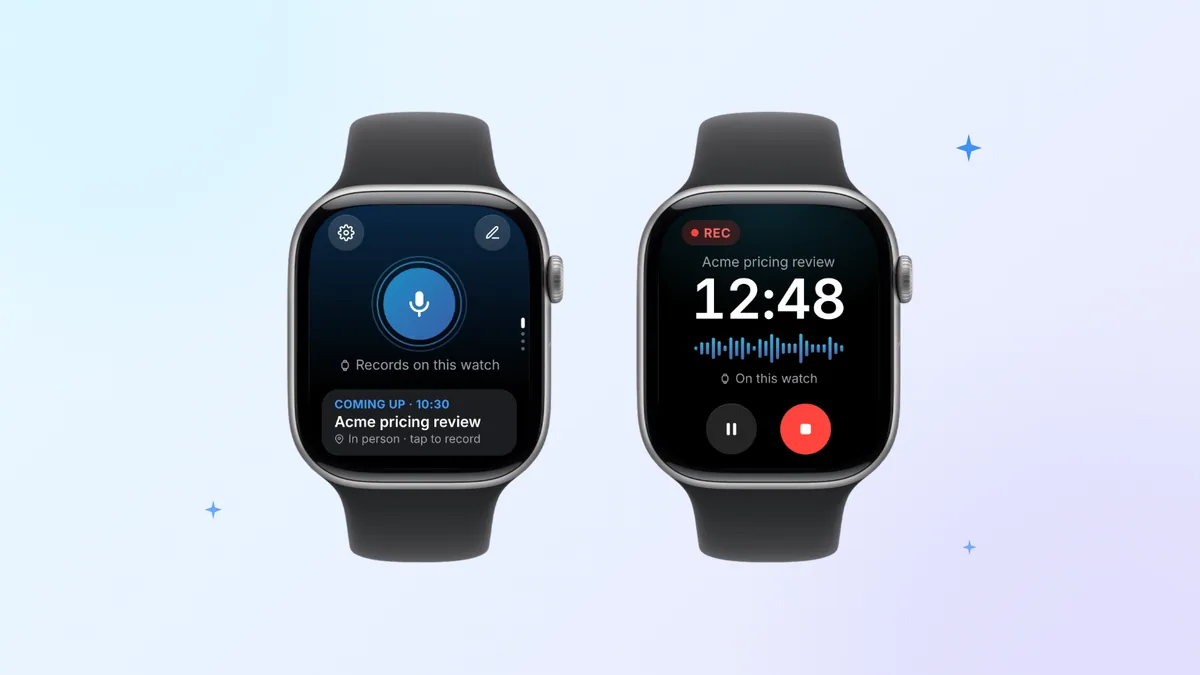
One tap starts a recording through the watch's own mic, and a short haptic tap tells you it's going. From there you can drop your arm and carry on; the screen dims while Laxis keeps recording. Your iPhone can stay in your bag or on your desk: the watch keeps the recording and syncs it on its own, uploading through iPhone when the phone is nearby, or over Wi-Fi, or cellular on a watch that has it, without the phone. After you stop, the conversation becomes a transcript with speakers, plus AI notes and the meeting's action items, and a notification lets you know when they're ready. If you tap your next meeting on the watch before you start, the notes are filed under it. And if you tap the flag while you record, each mark shows up as a jump point in the transcript, the quickest way back to a figure someone quoted.
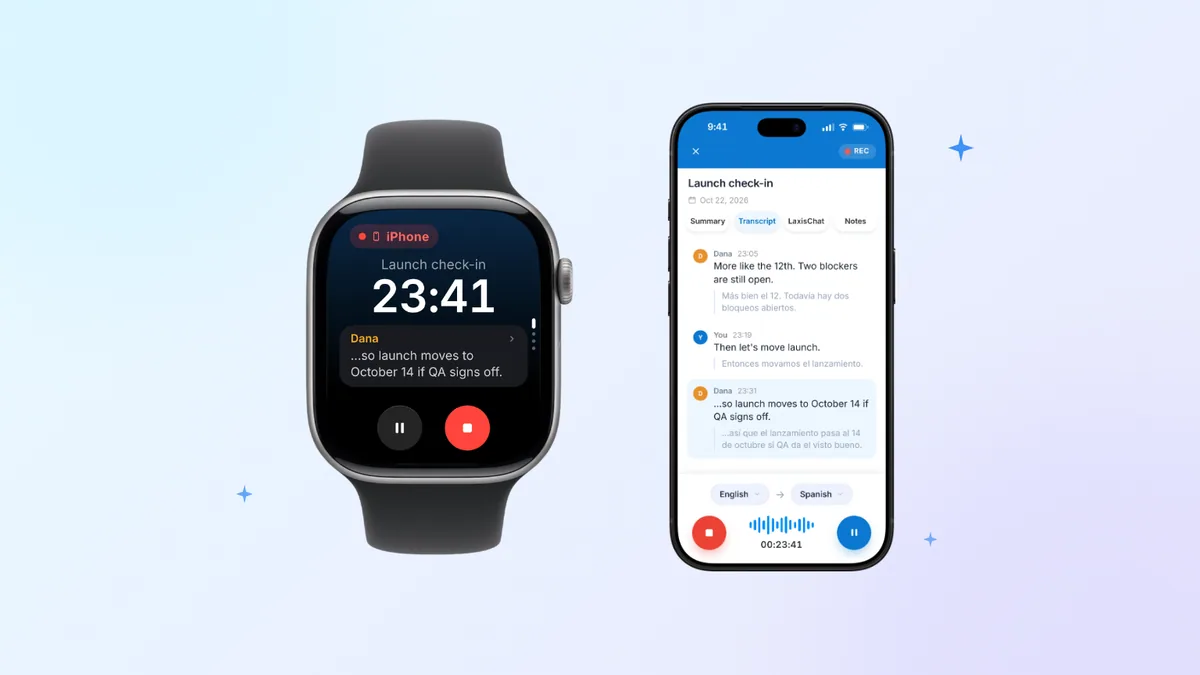
Two details matter for anyone searching for Apple Watch live transcription. A recording made on the watch gets transcribed once it has uploaded, so you won't see words appear on your wrist while it records. When a recording runs on iPhone, though, the watch becomes the remote: it displays the running timer and the transcript as it forms, and you can pause or stop from your wrist.
Afterwards, the wrist is for catching up. Notes gives you a one-line summary of each meeting. Tasks groups action items by meeting, so you can tick them off or add one by voice. Jot saves a spoken thought to today's Daily Note, tidied up, and it works offline. Ask Laxis answers questions across your notes, on screen or read aloud, and that one uses AI Chat, a Premium feature. It all ends up in your Laxis workspace next to your online meetings, readable on iPhone, Mac, Windows or the web, because the same Laxis AI meeting assistant sits underneath.
Already have a folder of old watch memos? Save one out of Voice Memos (on a Mac you can drag it into a Finder window) and upload it in the Laxis web app, which takes m4a, mp3, wav and flac files up to 200 MB. The transcript and report appear in your meetings list once it's processed.
Laxis for Apple Watch is part of the free Laxis app for iPhone and works on any watch running watchOS 10 or later. What to know before you rely on it: you set it up and sign in through the Laxis app on iPhone; transcription runs in the cloud, so you get text only after the recording uploads, through iPhone or over Wi-Fi or cellular; and Basic, the free plan, gives you 300 minutes a month across meetings and dictation, a 45-minute cap per recording and 30 days of history. Premium raises that to 2,000 minutes and two-hour recordings.
Whatever you use, recording people from your wrist carries the same obligations as recording them any other way. Let everyone know before you start, since some states and countries require all participants to agree. We're not giving legal advice here; for the details, see which states need everyone's consent.
Getting a transcript worth reading
- Distance beats software. The watch hears whoever is nearest. For a one-to-one, rest your arm on the table between you. For a bigger room, record on iPhone in the middle of the table and use the watch as the remote.
- Clear the mic. A cuff or a jacket sleeve over the watch muffles everything.
- Check the language before it matters. Voice Memos transcribes a short list of languages, so if your meeting runs in another one, pick a different route before it starts.
- Mind the length. Know your app's per-recording limit, 45 minutes on the free Laxis plan, so a long workshop doesn't get cut short.
Get the meeting, not just the memo. Laxis costs nothing to install from the App Store: put it on iPhone first, then use the Watch app to add it to your wrist. New to Laxis? 14-day Premium trial, no credit card. Turn wrist audio into notes
Where this leaves you
Apple Watch keeps getting better at listening, and Apple's new features show where the company is heading: quick text for the moment, gentle summaries for the day, privacy first. None of those new features gives you a full transcript you can quote, share and act on. Before you tap record, decide whether you need every word, a quick gist or a record other people can use, and the right route mostly picks itself.
Frequently asked questions
Can Apple Watch transcribe voice memos?
Not on the watch itself, since Apple's watch guide covers recording and playback only. Once a memo syncs, Voice Memos can show a transcript on iPhone 12 and newer models running iOS 18 or later, or on Mac computers with Apple silicon, in supported languages that include English, Spanish, French, German, Japanese and Chinese. Apple's Mac guide says recordings from devices without transcription support are transcribed when opened.
How do I convert Apple Watch voice memos to text?
Let each memo sync, then open it in Voice Memos on iPhone or Mac and view the transcript. Watch recordings appear under Watch Recordings on devices signed in to the same Apple Account. If you need speaker names, a summary or action items, save the file and upload it to a transcription app such as Laxis, or record with Laxis for Apple Watch next time.
Does Apple Watch have live transcription?
Yes, in limited ways: Live Listen can show Live Captions from iPhone on your wrist while iPhone streams sound to AirPods or MFi hearing devices. Live Rewind, which turns the last 15 seconds into text, is due in beta later this year for Apple Watch Ultra 4 and Apple Watch Series 12, English first. Laxis shows a live transcript on the watch for recordings running on iPhone.
Does Siri Recap give you a transcript?
No, Siri Recap writes summaries, not transcripts. Apple says it creates high-level summaries with no transcript, no recorded or stored audio and no speaker attribution, and the summaries delete themselves after seven days unless you save them. It needs Apple Watch Ultra 4 or Apple Watch Series 12, and Apple plans a beta later this year, English first. For a verbatim record, use a transcription app.
Can Apple Watch transcribe a meeting with speaker names?
Not with Apple's built-in tools: Apple doesn't describe speaker labels in Voice Memos transcripts, and Siri Recap has no speaker attribution. Laxis for Apple Watch records the meeting on your wrist, and once the recording uploads you get a transcript split by speaker, AI notes and the follow-ups. Tell everyone you're recording, since some places require every participant's consent.
Is there a free way to transcribe Apple Watch recordings?
Yes. Voice Memos transcripts are free on iPhone 12 and newer models with iOS 18 or later, and on Mac computers with Apple silicon, in the languages Apple supports. Laxis also has a free Basic plan with 300 minutes a month and recordings up to 45 minutes, which adds speakers, a summary and action items, and a new account opens with a 14-day Premium trial that needs no credit card.