Apple Watch Voice Memos Not Syncing to iPhone: Safe Fixes
You recorded something on your wrist, opened Voice Memos on iPhone later, and it isn't there. Apple Watch voice memos not syncing to iPhone is an old complaint: two Apple Community threads about it have each drawn hundreds of "I have this question too" clicks. The good news is that, unless it was deleted, the recording is still on the watch, waiting for its ride. The bad news is the fix people reach for when they're fed up. Apple's backup article says a watch backup leaves out Voice Memos recordings, so unpairing can erase your one copy. This guide goes from fixes that can't hurt to the two that can.
Everything here assumes the recording exists. If you're still working out how to capture audio in the first place, the companion piece on recording audio on Apple Watch starts there, and once a memo reaches your phone and you'd like it as text, see turning Apple Watch recordings into text.
How the trip from wrist to iPhone is meant to work
Apple describes the happy path in one line: whatever you record in Voice Memos on Apple Watch syncs by itself to iPhone, iPad and Mac, as long as each one is signed in to the same Apple Account. On those devices they sit under Watch Recordings inside Voice Memos, which is the first place to look before you assume anything is broken.
Two details from Apple's Mac guide explain most of the confusion. The trip runs through iCloud, and it only goes one way. Memos you record on iPhone or a Mac never appear on the watch, so a watch that doesn't show your phone recordings is working as designed.
Your watch reaches its paired iPhone over Bluetooth and leans on the phone for many wireless jobs. Recording needs none of that. Apple lists voice memos among the things any Apple Watch can do with no iPhone nearby and no Wi-Fi, which is exactly how a memo from a run, a gym class or a meeting down the hall ends up stored on your wrist until the two devices meet again.
Then there's the detail that decides the order of everything below. According to Apple's article on watch backups, data that syncs through iCloud, Voice Memos recordings included, isn't part of the watch backup. Until a memo has synced, it exists on the watch and nowhere else.
Do this first
Open Voice Memos on the watch and make sure the recording is listed. If it matters, make a rough safety copy before you change a single setting: play it out loud on the watch and record the playback with a laptop or another phone. It won't sound as good as the original, but after that no fix below can take the content away from you.
Five checks that take two minutes
- Look under Watch Recordings. Open Voice Memos on iPhone and tap Watch Recordings. If you also use Voice Memos on a Mac or iPad, check there too. A memo that turns up on the Mac but not the phone tells you the watch side is fine and the problem sits with iPhone.
- Make sure it's one Apple Account. Sync only reaches devices signed in to the same account. If the watch was set up under someone else's account, or your iPhone uses a different one, the two libraries never meet.
- Check that Voice Memos is on in iCloud. On iPhone, open Settings, tap your name, then iCloud. On recent versions of iOS you'll need to tap See All, then confirm Voice Memos is switched on. Apple gives the same path for iPad; on a Mac it's System Settings, your name, iCloud, then See All next to Saved to iCloud.
- Confirm the watch can see the phone. Press the side button on the watch to open Control Center. Apple's rule of thumb: a green iPhone icon means connected, while a red iPhone icon or a red X means it isn't. Keep the two close, make sure Airplane Mode is off on both, and check that Wi-Fi and Bluetooth are on in Control Center on iPhone. The phone also needs a working internet connection, because iCloud does the carrying.
- Check that iCloud isn't full. Apple warns that once you run out of iCloud storage, "iCloud Drive and other iCloud apps won't stay up to date across your devices," and Voice Memos keeps its recordings in iCloud. You'll see how much room is left under Settings, your name, iCloud. The free tier is 5 GB, which a photo library and a phone backup can use up long before you notice.
After each change, leave the watch beside the phone for a few minutes before you decide it didn't work. In the Apple Community threads, the people whose fix worked describe the missing memos showing up a few minutes later, not instantly.
Fixes, from harmless to risky
If the checks pass and the memo still won't move, work down this list and stop the moment it shows up. Steps 6 and 7 can't touch your recordings, and step 8 is low-risk with one precaution. Steps 9 and 10 can delete them.
- Restart both devices. It's Apple's own advice when something isn't working right. Turn the watch off by holding its side button until the sliders show, then tapping the power icon and dragging the slider across; Apple points out that it won't restart while it's charging. Turn iPhone off too, then turn both back on. Several users in Apple Community report stuck memos syncing after they restarted both devices. Save the force restart (side button and Digital Crown held together for at least 10 seconds) for a watch that has frozen.
- Install any waiting updates. The Watch app on iPhone keeps watch updates under My Watch, General, Software Update; on the watch itself, look in Settings, General, Software Update. Then open Software Update in Settings on iPhone and install anything waiting there too.
- Switch Voice Memos off and on in iCloud. Users report this fix often. In an Apple Community thread where hundreds of people said they had the same problem, the top-ranked answer was to turn Voice Memos off in iCloud settings on iPhone, restart both devices, then turn it back on; two or three minutes later, Watch Recordings appeared with the missing memos. Users in an older thread report the toggle working on its own. Because this touches the phone's library, export any iPhone recording you can't replace first, and read any prompt before you confirm. If just one memo is stuck while the rest sync, one older report blames a name clash with a recording on the phone, so giving the stuck memo a new name on the watch is worth a try.
Stop here if the recording matters
The next two steps can delete a memo that hasn't synced. Unpairing erases the watch, and Apple's backup article lists "Information that syncs to iCloud, like Voice Memos recordings" among the things a watch backup doesn't include, so restoring won't bring an unsynced memo back. Users report losing recordings both ways: one lost a recording after re-pairing, and others say deleting Voice Memos from iPhone wiped memos on every device.
Before you go on, make the rough copy described above, and consider talking to Apple Support first.
If the recordings you can't afford to lose are meetings, Laxis for Apple Watch shows each one go from uploading to ready on your wrist, so you know when it's safe: get Laxis free for iPhone.
- Reinstall Voice Memos on iPhone, carefully. Some users say deleting the app and downloading it again from the App Store got sync going. Others say the same move deleted recordings on every device, so don't count on iCloud to bring them back. If you try it, first make the rough copy of the watch memo described above and save every iPhone recording you can't lose (Share > Save to Files).
- Unpair and pair again, as a last resort. Keep both devices close. In the Watch app on your iPhone, pick the My Watch tab, tap All Watches, tap the info button beside your watch and choose Unpair Apple Watch. Your phone backs up the watch first, but that backup leaves out Voice Memos recordings, so a memo that hasn't synced is gone once the watch is erased; then you set the watch up again and restore from that backup. Re-pairing fixed sync for some people in Apple Community. It also cost others the very recordings they were trying to rescue.
Keep the next memo from getting stranded
- Treat the watch as an outbox, not an archive. Before you delete a memo from the watch, or unpair, erase or trade the watch in, find the recording under Watch Recordings on iPhone.
- Reunite the devices soon after anything important. A memo that sits on your wrist for a week is a week of risk.
- Leave room in iCloud. Keep Voice Memos switched on in iCloud and keep an eye on the storage meter, because a full account stops the sync.
- Name important memos straight away. They're easier to spot on the phone, and a unique name sidesteps the clash some users describe.
Our complete guide to Voice Memos on iPhone covers the phone side in more depth, including Recently Deleted and how long it holds on to things. And once a memo is safely on the phone, our walkthrough on how to transcribe voice memos on iPhone shows how to read it as text.
When the recording is a meeting
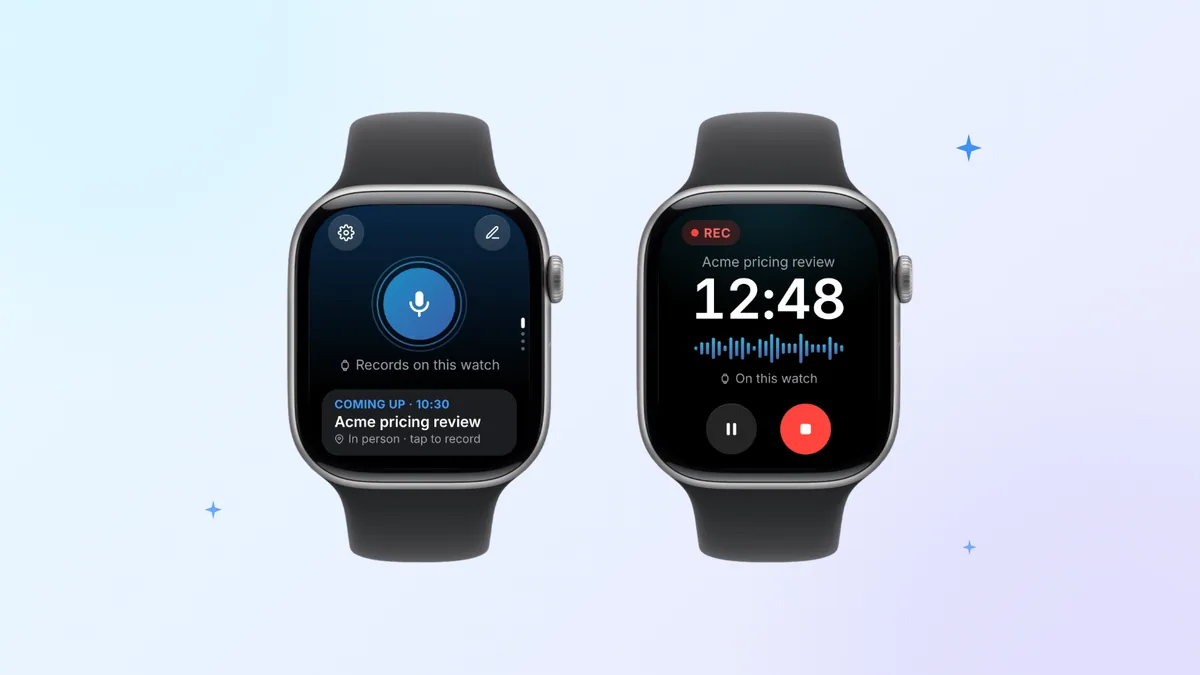
Voice Memos is a fine notebook for your own thoughts. It's a weak filing system for a client call: when a memo stalls you're left troubleshooting, and when it does land you get audio and, at best, a transcript with no speakers or action items. That gap is what Laxis for Apple Watch is built around.
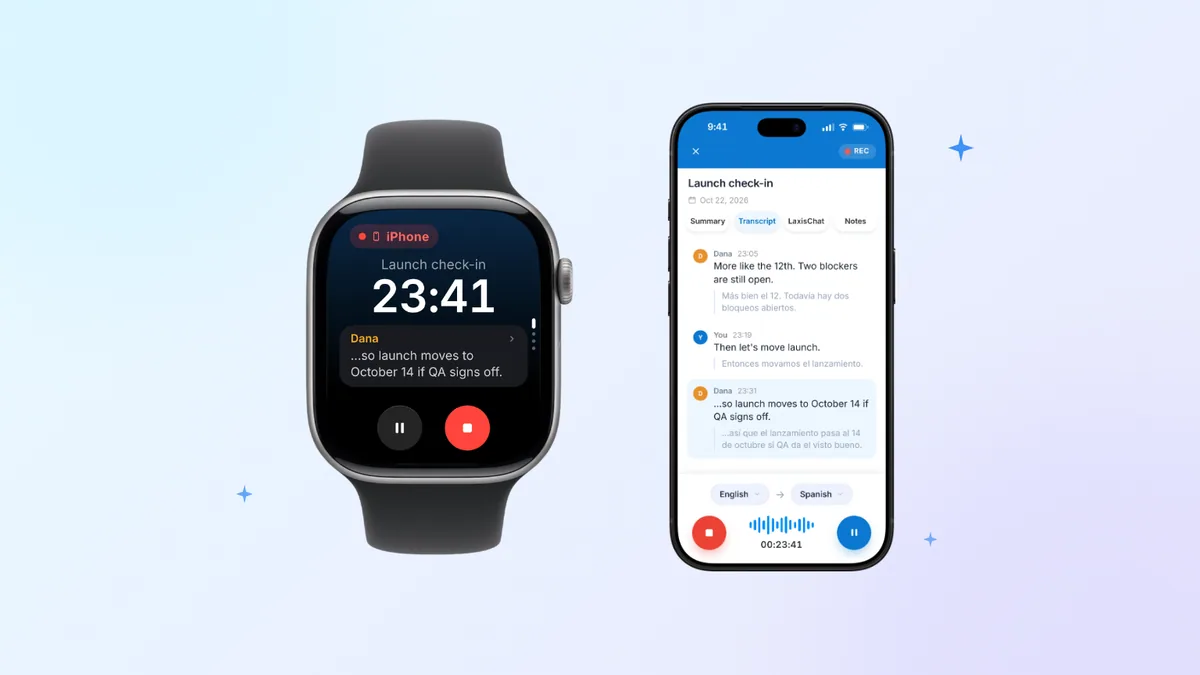
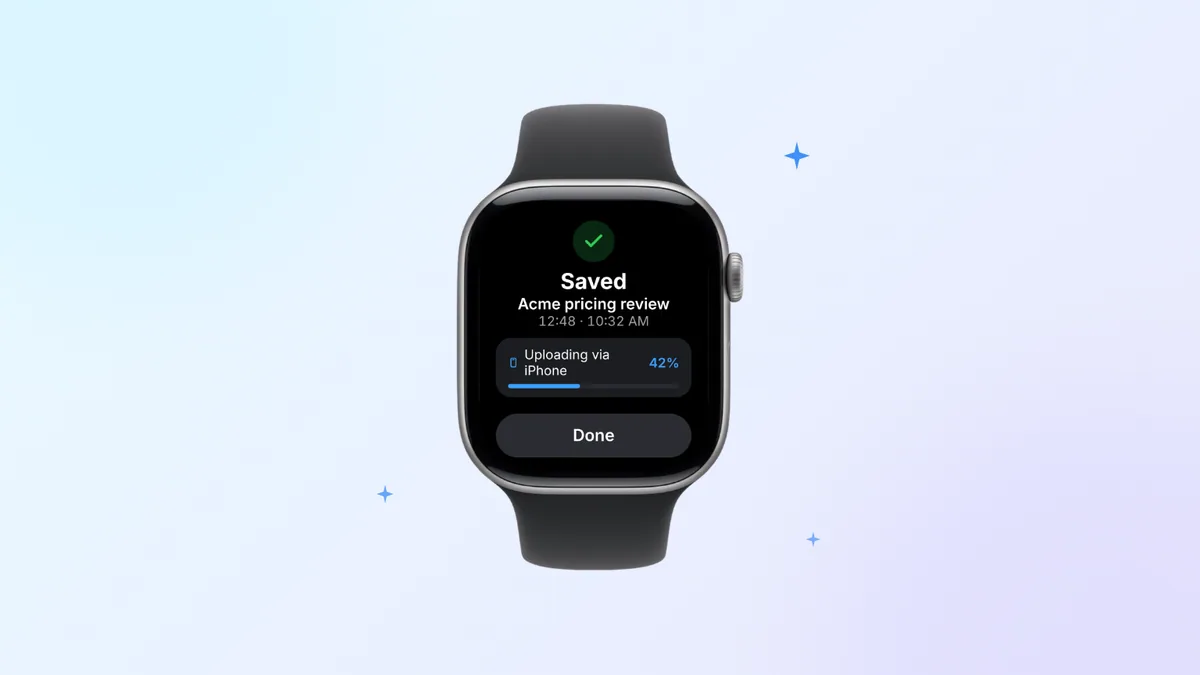
Tap once and Laxis records with the watch's microphone. A tap on the wrist confirms it has started, and you can lower your arm and keep talking while the screen dims. If your iPhone stays at your desk, the watch holds on to the recording and syncs it by itself: up through your iPhone once the phone is back in range, or straight over Wi-Fi, or cellular on a watch that has it, without waiting for the phone at all. You don't have to guess about it: the Notes view on the watch shows each new recording go from uploading to ready, and a notification tells you when the notes are done. Tap your next meeting before you start, and Laxis files the notes under it.
What arrives is more than a file: a speaker-by-speaker transcript, AI notes and the action items, in the same workspace as your online meetings on iPhone, Mac, Windows and the web. It's the same Laxis AI meeting assistant you'd use for Zoom, Google Meet or Teams calls, so a wrist recording sits next to everything else you've captured. If more of your recording happens on a phone than on a watch, our comparison of AI note taker apps for iPhone covers that side.
Laxis for Apple Watch is included with the free Laxis app for iPhone and runs on any watch with watchOS 10 or later. The honest limits: you need the Laxis app on iPhone to set up and sign in, transcription happens in the cloud after the upload rather than on the watch, and Basic, which is free, covers 300 minutes a month (one pool shared with dictation), single recordings of up to 45 minutes and a 30-day history. Ask Laxis, for questions on your wrist, runs on AI Chat, so it needs Premium.
A recorder on your wrist doesn't change the rules about recording people. Tell everyone you're recording, and know that some places require every participant's consent. This isn't legal advice, but our walkthrough of recording consent rules by state is a sensible place to start.
Record on your wrist, find the notes everywhere. Laxis is a free download for iPhone from the App Store; once it's installed, open the Watch app and add Laxis to your watch. New accounts: 14-day Premium trial, no credit card. Bring Laxis to your watch
The bottom line
A voice memo on a watch is a file in transit, and many stalls, going by user reports, clear up with a restart or a quick iCloud toggle. The costly mistakes come from wiping the one device that holds the file. Check the destination before you clear the source, and a sync problem stays an annoyance instead of a loss.
Frequently asked questions
Why are my Apple Watch voice memos not syncing to my iPhone?
Usually because the watch and iPhone aren't connected, Voice Memos is switched off in iCloud on iPhone, the two devices use different Apple Accounts, or iCloud storage is full. Apple routes watch recordings through iCloud to every device signed in to the same account. Check those four things, restart both devices, and leave them side by side for a few minutes before trying anything riskier.
Where do Apple Watch voice memos show up on iPhone?
They appear in the Voice Memos app on iPhone, in a section called Watch Recordings. Apple says the same recordings also show up in Voice Memos on iPad and Mac when those devices are signed in to the same Apple Account. Recordings made on iPhone or Mac never appear on the watch, because the sync only runs from the watch outward.
How do I get voice memos from my Apple Watch to my phone?
Let them sync: keep the watch close to your iPhone with Bluetooth and Wi-Fi on, Airplane Mode off and Voice Memos switched on in iCloud, then open Voice Memos on iPhone and tap Watch Recordings. Apple's guide doesn't describe a way to export a memo from the watch itself, so if sync stalls, restart both devices before trying anything more drastic.
Will unpairing my Apple Watch delete voice memos that haven't synced?
It can, so treat unpairing as a last resort. Unpairing erases the watch, and Apple's backup article says the watch backup doesn't include information that syncs to iCloud, such as Voice Memos recordings. A memo that never reached iPhone may be gone for good afterwards. Users in Apple Community report losing recordings exactly this way, so try every other fix first.
Do Apple Watch voice memos need iCloud to sync?
Yes, as Apple describes it: watch recordings reach your iPhone, iPad and Mac through iCloud when all of them use the same Apple Account. Keep Voice Memos switched on in iCloud on iPhone, under Settings, your name, iCloud and See All, and leave some free iCloud storage, since Apple says a full account stops iCloud apps from staying up to date.
Can I transcribe Apple Watch voice memos after they sync?
Yes. Once a watch memo has synced, open it in Voice Memos on iPhone 12 or later with iOS 18 or later, or on a Mac with Apple silicon, and look for the transcript. Apple's Mac guide says recordings made on devices that can't transcribe get transcribed when opened. Languages are limited, and Apple doesn't describe speaker labels in these transcripts.