AI Note Taker for In-Person Meetings: Setups That Work

Using an AI note taker for in-person meetings means solving a problem online note takers never face: hearing a room. There's no meeting link to join and no clean audio feed for each person, only whatever reaches a microphone across the table. So the real question isn't which app. It's which microphone, where it sits, and who tells the room it's on. Here are the setups that work, which one suits which meeting, and the honest limits of each, Laxis included.
The short answer
- Small group, everyone seated: a phone running a note-taker app, in the middle of the table.
- Hybrid meeting: the laptop running the call, so remote voices come in clean.
- Long table or big room: a conference speakerphone or microphone array plugged into that laptop.
- Walking, site visits, corridor chats: Apple Watch with Laxis for Apple Watch, or AI earbuds.
- Every time: say you're recording before the first agenda item.
Why notes from in-person meetings go missing
Online meetings have quietly trained us to expect a transcript. The platform records, captions run, a bot joins if you invited one. Walk into a meeting room and all of that disappears: there's no link for a bot to join, no record button on the wall, and the person who called the meeting usually ends up taking the notes, which means the person who most needs to listen is typing. Decisions still get made. They just live in four people's memories, in four slightly different versions.
An AI note taker fixes the typing, not the hearing. It can only write up what its microphone caught, which is why the setup matters more than the brand of app.
Let the room talk
Start a recording in the Laxis app on your phone, laptop or Apple Watch; the transcript, summary and action items land next to your online meeting notes.
Free Basic plan, 300 minutes a month Get Laxis
Five ways to put a note taker in the room
1. A phone on the table
The default, for good reason: you already have one, and its microphones are decent. Open the note-taker app, start recording and put the phone down where it can hear everyone. In the Laxis app for iPhone and Android, notes build while people talk; when you tap Stop, Laxis tidies them, writes a report and pulls out the tasks. Two behaviors are worth knowing. A recording stops and saves itself if nobody speaks for 10 minutes (you get a 60-second warning first) or when it reaches your plan's per-recording limit, and tapping Record on the same meeting adds a new recording to the same note, so a long session never has to become two documents.
The common snag is that the phone becomes the meeting's centerpiece. Turn the screen off, silence it and leave it alone.
2. The laptop you'd bring anyway
A laptop earns its place when it's already in use: a hybrid meeting where it runs the video call, or a workshop where you're presenting from it. The Laxis app for Mac and Windows records an in-person conversation through the computer's microphone, and in a hybrid meeting it also captures the computer's audio, so remote participants come through clean rather than via a speaker across the room. The weak spot is the built-in microphone, which sits next to the keyboard and fan. If you'll be typing, let a phone handle the room.
3. Apple Watch, when there's no table
Some meetings happen on the move: a corridor catch-up, a site walk, a conversation that starts before you've found your phone. For those, Apple Watch can be the microphone. Laxis for Apple Watch arrives with the Laxis app for iPhone, which is free, and needs watchOS 10 or later on the watch. One tap starts a recording through the microphone on your wrist, and a short tap from the watch confirms it's running. Drop your arm and carry on talking while the screen dims; tap the flag when something's said that you'll want to jump back to, or tap the next meeting the watch shows you so the notes land under that meeting. iPhone can stay behind: until it can upload, the watch keeps the audio, then sends it through iPhone if it's close, otherwise over Wi-Fi, or cellular on watches that have it. After the upload, Laxis sends a notification when the speaker-labeled transcript, summary and action items are ready.
The limits: a watch recording is transcribed only after it uploads, so there's no live text while you record on the wrist, and it's a single small microphone, so keep your arm on the table and closer to the person talking than to the coffee machine. A watch also gives nobody else any sign that it's recording, so say so out loud. For screenshots and setup, visit the Laxis for Apple Watch page; if you'd rather use Apple's own Voice Memos, here's how recording audio on Apple Watch works.
4. AI earbuds, for your own voice and your calls
AI earbuds put the microphones next to your mouth, which makes them strong wherever your own voice matters most: walking one-to-ones, interviews where you ask the questions, and days that swing between phone calls and face-to-face conversations. OSO AI Earbuds, which work with Laxis, record only when you start them and capture what their microphones hear plus the audio playing through them. Those recordings end up in your Laxis workspace with everything else. In a meeting room, though, someone three seats away is a long way from your ears, so for a group, put a phone in the middle as well. As with a watch, nobody can tell from looking that earbuds are recording, so announce it.
5. Room hardware, for long tables
Past six or seven people, one phone struggles to hear the far end. A conference speakerphone or a meeting camera with a microphone array, plugged into the laptop that runs your note taker and chosen as its microphone, covers a long table far better. Test it before the meeting, not during: your meeting app's audio settings show the input level for whichever microphone you pick.
Which setup for which meeting
| Meeting | Setup | Why it works | Common snag |
|---|---|---|---|
| One-to-one at a desk or café | Phone between you, or earbuds | Two voices, short distance | Background music and the coffee grinder; pick a table away from the counter |
| Three to six people around a table | Phone in the middle | Everyone within reach of one microphone | Laptop fans and typing right beside the phone |
| Seven or more, or a long table | Speakerphone or microphone array on the laptop, or a second phone at the far end | One phone can't hear the far end | An untested room microphone; check it before people arrive |
| Hybrid: room plus remote people | The laptop running the call, plus a room microphone | Remote voices are captured from the computer's audio | A second phone next to the room speaker records the echo |
| Walking, site visits, corridors | Apple Watch or earbuds | No table, no free hand | Wind and traffic; stop and face each other for the part that matters |
| Workshops over 45 minutes | Phone or laptop on Premium (2-hour recordings) or Business (4-hour) | Basic stops and saves each recording at 45 minutes | On Basic, tap Record again after the auto-save to keep the same note |
| Research interviews | Phone nearer the interviewee, or earbuds for your questions | The answers matter more than the questions | Ask again before the conversation turns personal |
A five-minute routine before you start
- Choose the microphone for the room. Phone for small groups, the call laptop for hybrid meetings, room hardware for long tables, a watch or earbuds when there's no table.
- Test it before people arrive. Record ten seconds from the farthest seat and listen back, or check a laptop or USB microphone in your meeting app's audio settings.
- Tell everyone you're recording. Mention it in the invite, repeat it before the first agenda item, and stop if anyone objects.
- Place the device and start recording. Somewhere it can hear everyone, notifications silenced, running before the discussion begins.
- Name the speakers and check the notes. Afterwards, rename the speaker labels, fix any names the transcript got wrong and share the summary and action items.
Audio a note taker can work with
Placement does most of the work, and our guide to in-person meeting transcription covers it in depth: surfaces, distances, crosstalk. A few habits it doesn't cover:
- Start with names. A quick round of introductions gives the transcript a clean sample of each voice, which makes the Speaker 1, Speaker 2 labels easy to rename later, and it's the natural moment to mention the recording. In Laxis you tap a label to name the person, and an optional Voice Recognition setting, off by default, can learn voices you've enrolled.
- Protect the microphone from the phone itself. Turn on Do Not Disturb; an incoming call can take over the microphone mid-meeting.
- Plan for power and signal. An hour of recording uses real battery, so plug in for long sessions. If the upload fails, Laxis keeps the recording on the phone and retries while the app is open.
- Give hybrid meetings one recorder. Two devices on the same call record each other's echo. Let the laptop take the call and the room microphone, and keep phones away from the speaker.
Telling the room you're recording
In an online meeting, the platform usually puts a recording notice on screen. In a room, nothing does that for you. A phone on the table is at least visible; a watch or a pair of earbuds gives the room no sign at all. So the announcement is yours, every time:
- Put a line in the invite: "We'll record this meeting for notes."
- Say it before the first agenda item and get a yes from everyone, including anyone who arrives late.
- If anyone says no, switch off and write notes by hand, or record only the parts they're happy with.
- For HR, health, legal or money conversations, ask explicitly, and consider not recording at all.
Which consent you need depends on the state or country, and some places want everyone's agreement. Our recording consent laws guide maps them by state and country; like this article, it's general information, not legal advice.
Where Laxis fits
Laxis, which we make, was designed around exactly this mix. Start a recording from the Laxis app for iPhone or Android on the table, the Mac or Windows app in a hybrid room, Apple Watch on a walk, or OSO AI Earbuds, and each one sits in the same Laxis account as your Zoom, Teams and Google Meet calls: a transcript whose speakers you can name, a summary and action items, in 60+ languages. No hardware is required; the phone app does the job on its own. More on the AI meeting assistant page.
The honest limits. The standard apps process audio in the cloud, so they need a connection. The free Basic plan comes with 300 minutes a month (shared with the Voice Keyboard), ends each recording at 45 minutes and archives notes after 30 days; Premium is $15.99 a month, or $9.99 billed yearly, for 2,000 minutes and 2-hour recordings. Watch recordings are transcribed after they upload, AI Chat and Ask Laxis on the wrist are Premium, and Laxis isn't HIPAA compliant, so it's the wrong tool for clinical conversations. And whichever device you record with, tell people before you start: it takes one sentence, and it's what the law expects of whoever records.
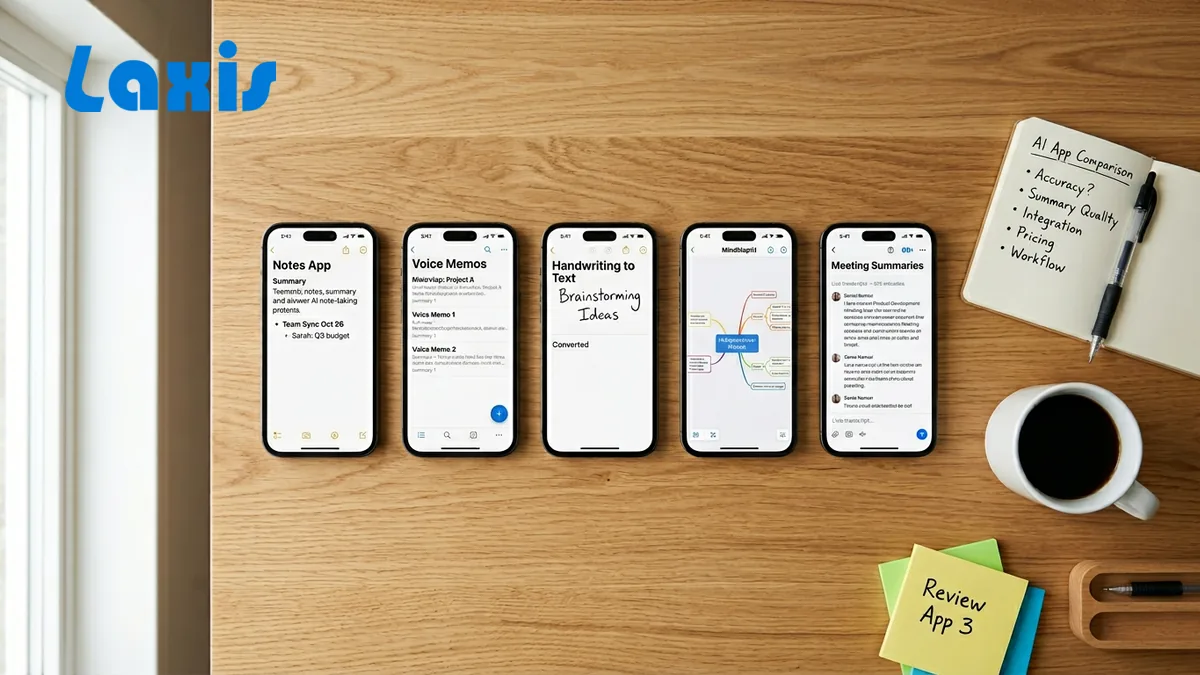
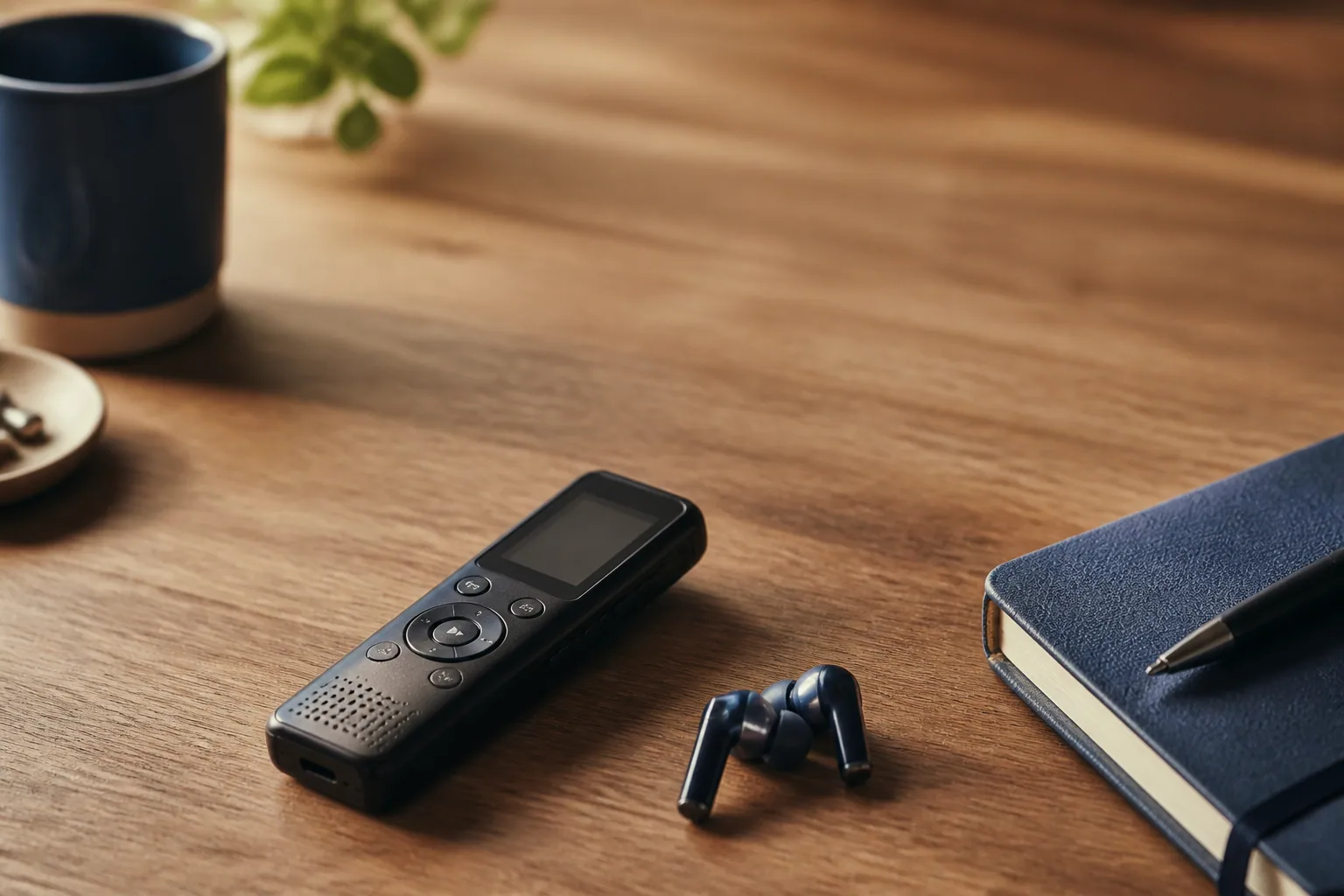
If you're still choosing hardware, our roundup of small recording devices and meeting recorders compares the options, and our roundup of note taker apps for phones covers iPhone and Android.
The bottom line
In a room, a note taker is only as good as the microphone you give it and the announcement you make. Match the setup to the meeting, test it before anyone sits down, say it out loud, and spend the meeting looking at people instead of your keyboard.
Your next in-person meeting, with notes. Record from your phone, laptop or Apple Watch; the transcript, summary and action items arrive in one workspace. 14-day Premium trial, no credit card. Download Laxis
Frequently asked questions
Can an AI note taker work in an in-person meeting?
Yes, an AI note taker works in an in-person meeting as long as a microphone in the room can hear everyone. Run a note-taker app on a phone placed mid-table, on a laptop, on Apple Watch or through AI earbuds, and the app transcribes the recording and writes a summary and action items. Microphone placement matters more than which app you pick.
Where should I put my phone to record a meeting?
Put the phone in the middle of the table, roughly the same distance from everyone, with nothing covering its microphones and away from laptops, vents and projectors. For more than six or seven people or a long table, add a second device at the far end or plug a conference speakerphone into a laptop. Record a ten-second test from the farthest seat first.
Can Apple Watch record an in-person meeting?
Apple Watch can record an in-person meeting with an app such as Laxis for Apple Watch, which starts recording with one tap using the watch's built-in microphone, even when iPhone isn't nearby. After the recording uploads, Laxis returns a transcript with speakers, a summary and action items. It needs watchOS 10 or later, and everyone in the room should hear from you that it is recording.
Do I need to tell people I'm recording an in-person meeting?
You should always tell people before you record an in-person meeting, and in some places the law requires everyone's consent. Unlike an online meeting, a room has no on-screen recording notice, and a watch or earbuds show no sign at all. Mention it in the invite, say it at the start and stop if anyone objects. None of this is legal advice.
Can AI tell who is speaking in a meeting room?
AI note takers can separate speakers in a meeting room, usually labeling them Speaker 1, Speaker 2 and so on, and you can rename the labels afterwards. Accuracy drops when people talk over each other or sit far from the microphone. A round of introductions at the start helps, and in Laxis an optional Voice Recognition setting, off by default, can learn enrolled voices.
How should I record a hybrid meeting?
Record a hybrid meeting on the laptop that runs the video call, so remote participants are captured from the computer's audio while a room microphone picks up the people at the table. Avoid putting a second phone next to the room speaker, because it records the echo. Announce the recording both in the room and on the call, since remote people can't see your setup.
Related Product
Laxis AI Devices
Professional grade capture.
- OSO AI Earbuds record calls, meetings and conversations with a tap
- The Panocore 360° camera captures the whole room
- Everything lands in your Laxis workspace, transcribed in 60+ languages